- Apps
- Premium
-
VPN Locations
- Help
- Sign up
- Sign in
Every Way to Change Your IP Address, and Which One You Need
Contents
- First, which IP address do you want to change?
- The methods side by side
- How to change your public IP address
- How to change your IP address on iPhone
- How to change your IP address on Android
- How to change your IP address on Windows 11
- How to change your IP address on Mac
- Why your IP address didn't change
- Is it legal to change your IP address?
- FAQ
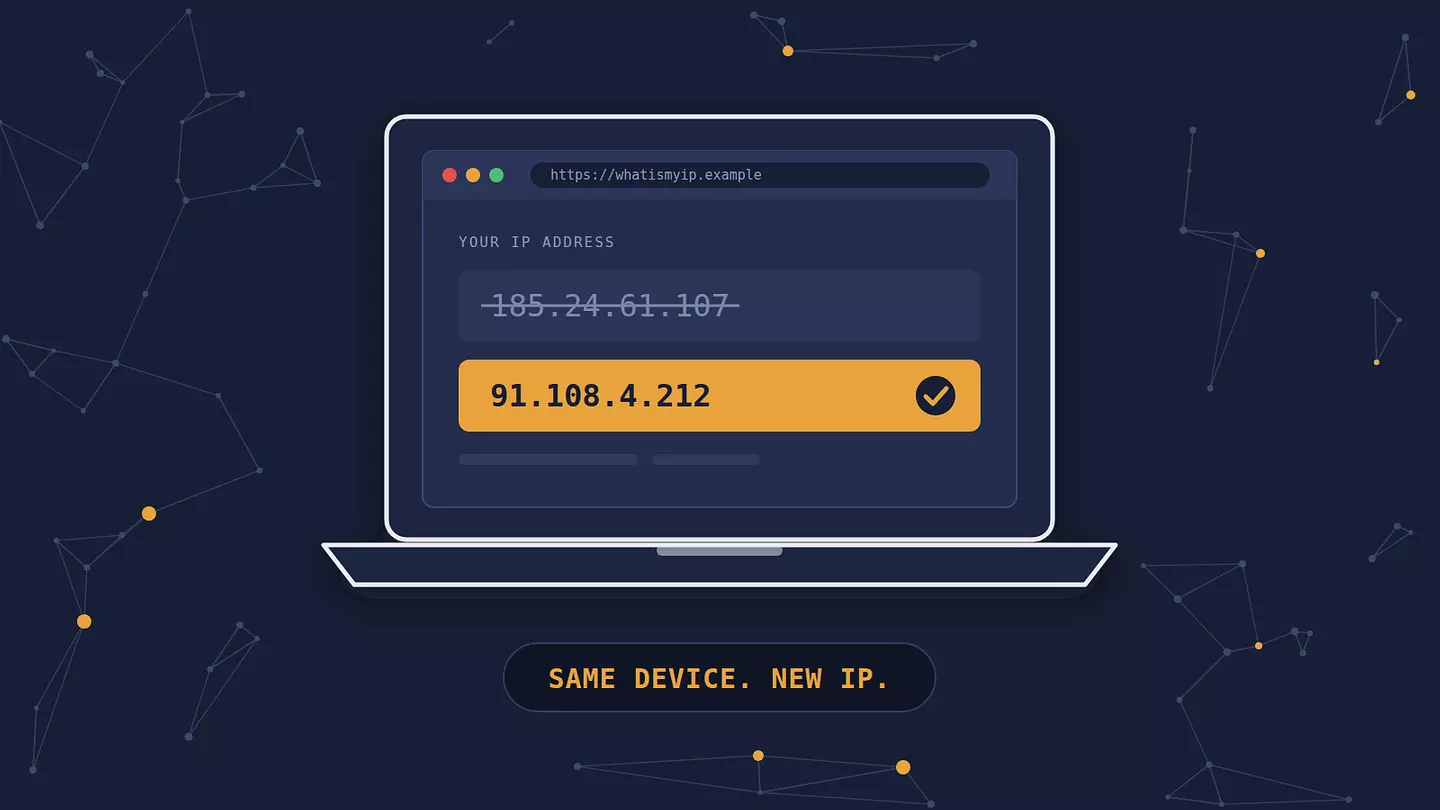
The fastest way to change the IP address websites see is to connect to a VPN: it takes about ten seconds, works on any device, and lets you pick the country your new address comes from.
Restarting your router can also get you a new address, but only if your provider hands out dynamic IPs, and you get no say in where it points. The IP settings buried in your phone or laptop change something else entirely, your local address, which nobody outside your home network ever sees. So before you touch anything, it's worth knowing which of the two you're after.
First, which IP address do you want to change?
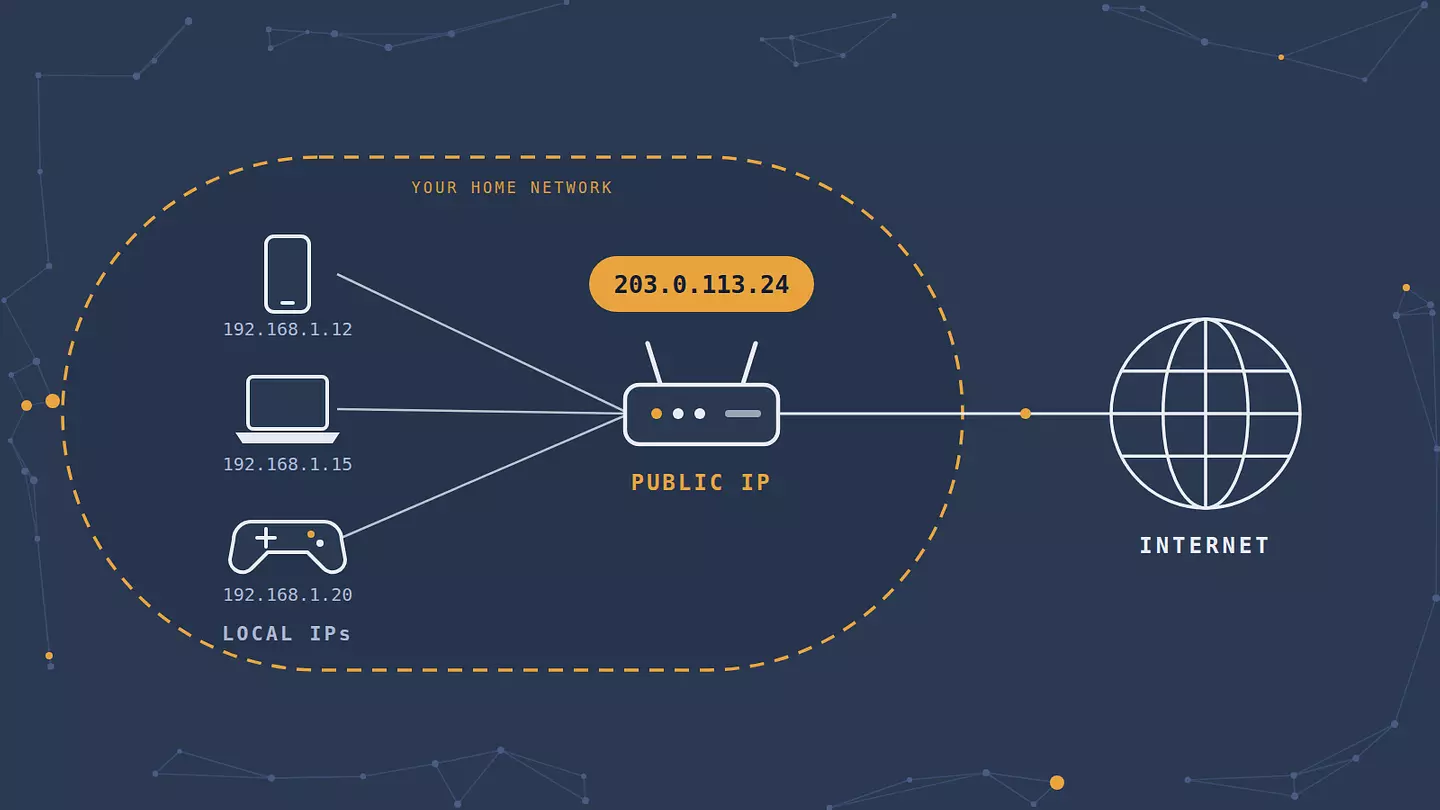
You have two IP addresses at any given moment, and they do different jobs.
Your public IP is the one the internet sees. Your internet provider assigns it to your router, and every device in your home shares it. When a website logs your visit, a streaming service checks your region, or a game server bans you, this is the address involved. You can check your current IP to see it along with the rough location it gives away.
Your local (or private) IP is the one your router gives each device inside your home network. It usually starts with 192.168, 10., or something between 172.16 and 172.31. It exists so your router knows which device asked for which web page. No website ever sees it.
Almost everyone searching for this wants to change their public IP: to reach content locked to another country, get around an IP ban, stop sites from pinning them to a city, or just get a fresh address. The local IP matters in narrower cases, like fixing an address conflict on your network, setting up port forwarding, or giving a printer or game console a fixed address.
This is where most guides go wrong. They open with manual IP settings on Windows, which only ever touch the local address. You can follow every step and your public IP won't move by a single digit.
The methods side by side
Method | Which IP changes | Choose a country? | Time it takes | Hides activity from your ISP? |
|---|---|---|---|---|
VPN | Public (as seen by sites) | Yes | Seconds | Yes |
Restart your router | Public, if your IP is dynamic | No | 5 minutes to overnight | No |
Airplane mode on mobile data | Public (carrier-assigned) | No | Seconds | No |
Switch networks | Public | No | Seconds | No |
Proxy | Public, in one browser or app | Yes | A minute | No |
Tor Browser | Public, in Tor Browser only | Limited | A minute | Partly |
Ask your ISP | Public | No | Days | No |
Manual or renewed local IP | Local only | No | A minute | No |
How to change your public IP address
Use a VPN
A VPN (virtual private network) routes your traffic through an encrypted connection to a server somewhere else, so websites see that server's IP instead of yours. It's the only method on this list that gives you a new address on demand, in the country you pick, and keeps your internet provider from seeing which sites you visit. If you want the full mechanics, here's how a VPN works.
The process is the same everywhere:
Install a VPN app or browser extension.
Pick a server location.
Connect, then reload a page that shows your IP to confirm it changed.
Browsec has servers in 46+ countries. The free plan covers the browser extensions (Chrome, Firefox, Edge, Opera) and the iOS and Android apps. An extension changes the IP only for traffic from that browser, which is plenty if all you need is a different address on one website. If you want every app on your computer covered, games and torrent clients included, the desktop app for Windows, macOS and Linux does that, and it's part of Premium.
Want a different address again? Disconnect and pick another server, or reconnect to the same country and you'll often land on a different machine there.
Restart your router
If your provider uses dynamic IPs (most home connections do), your router borrows its public address on a lease. Unplug the router and modem, and when they reconnect, you may get a new one.
The catch is "may". Many providers tie the lease to your modem's hardware address and hand the same IP back when it reconnects, sometimes for weeks or months. Leaving the modem unplugged longer helps: a quick five-minute restart often returns the same address, while leaving it off overnight gives the old lease time to expire. If nothing changes after a few tries, you probably have a static IP, or your provider simply reassigns the same one. Our guide to static vs dynamic IPs shows how to tell which you have.
Switch networks or toggle airplane mode
Your public IP belongs to the network, not your device. Move from home Wi-Fi to mobile data, a café's Wi-Fi, or a phone hotspot, and your public IP changes instantly.
On mobile data, turning airplane mode on for about ten seconds and then off usually gets you a new address too, because your phone disconnects from the carrier and reconnects to its pool of addresses. This does nothing on Wi-Fi: the phone reconnects to the same router, which still has the same public IP.
Use a proxy or Tor
A proxy server relays your requests like a VPN does, but typically without encryption, and usually only for the one browser or app you configure it in. It's fine for a quick check of how a site looks from another country and not much more. The difference is covered in proxy vs VPN.
Tor Browser bounces your traffic through three volunteer-run relays, so sites see the last relay's address. It's strong for anonymity, but slow, and many sites block known Tor exit nodes or bury you in CAPTCHAs. You can't reliably choose the exit country either.
Ask your ISP
Call or message your provider and ask for a new IP address. Some will reassign one on request, especially if you give a reason like harassment, a DDoS attack on your connection, or an old address that landed on a blocklist. Others will only do it by switching you to a paid static IP. It's slow, but it's the only way to get a genuinely new address from your own provider when you have a static one.
How to change your IP address on iPhone
To change the public IP your iPhone shows, connect to a VPN or, on mobile data, toggle airplane mode on and off. You can get Browsec for iPhone from the App Store and connect in two taps.
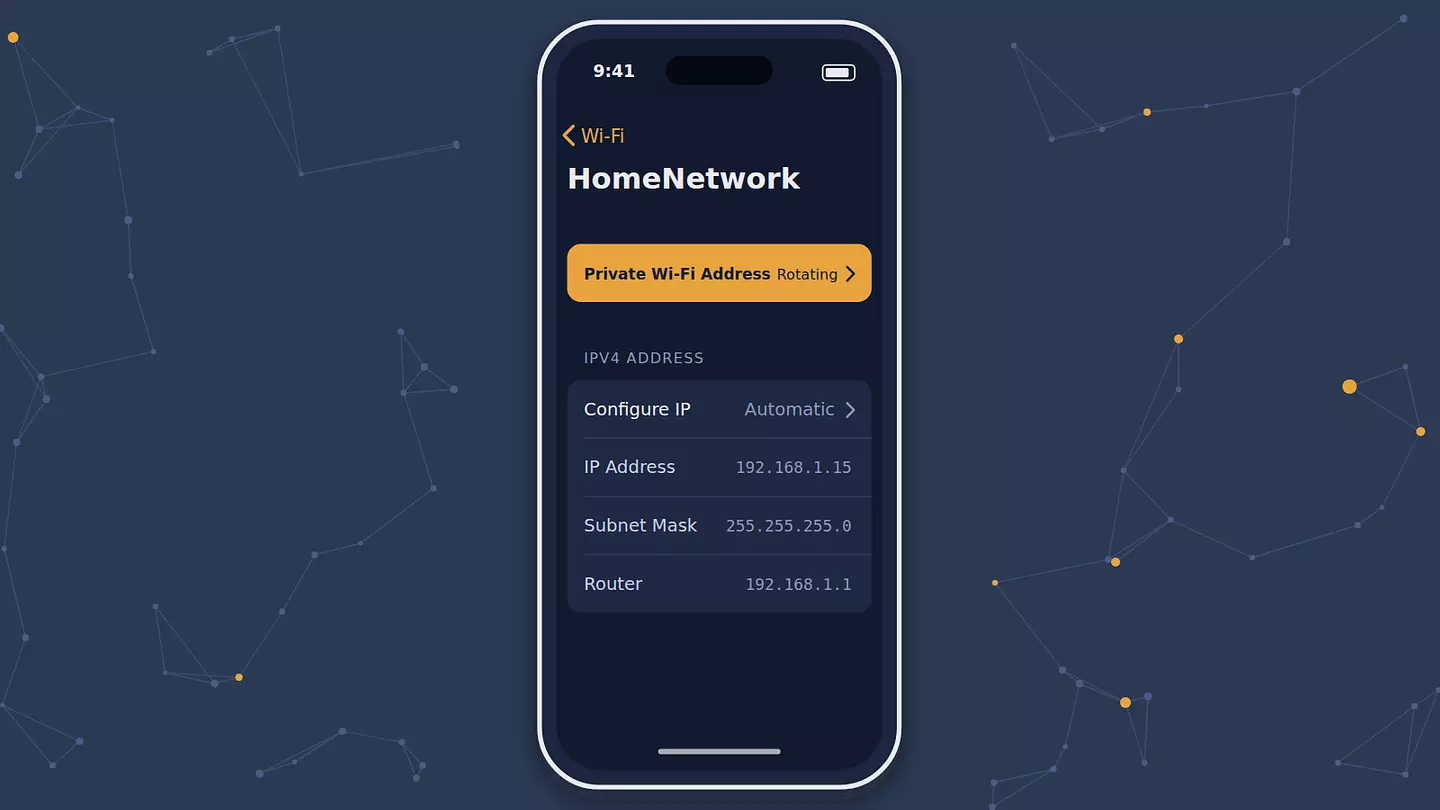
Older guides tell you to tap Renew Lease, but Apple removed that button in iOS 15. To get a new local IP on Wi-Fi now:
Open Settings > Wi-Fi.
Tap the (i) next to your network.
Change the Private Wi-Fi Address setting (turn it off, or switch between Fixed and Rotating on iOS 18 and later), then confirm when your iPhone asks to rejoin.
Your phone reconnects with a different hardware address, so the router treats it as a new device and usually hands it a new local IP. If you'd rather keep that setting as it is, tap Forget This Network and join again, though some routers remember the device and give back the same address.
To set a local IP by hand, go to the same screen, tap Configure IP under IPv4 Address, choose Manual, and enter the IP address, subnet mask and router address. Use an address outside the range your router hands out automatically, or you'll end up with a conflict.
How to change your IP address on Android
For a new public IP, the options match the iPhone: a VPN, or airplane mode while you're on mobile data. The Android app is free on Google Play.
Android has no Renew Lease button. The simplest way to get a new local IP is to forget the network and join it again: long-press it in the Wi-Fi list, choose Forget, then reconnect and re-enter the password.
To set a static local IP, the menu depends on the phone:
On a Pixel: Settings > Network & internet > Internet, tap the gear next to your network, tap the pencil icon, open Advanced options, and change IP settings from DHCP to Static.
On a Samsung Galaxy: Settings > Connections > Wi-Fi, tap the gear next to your network, tap View more, and change IP settings to Static.
Then fill in the IP address, gateway and DNS. Other brands keep the same options under similar names, usually inside the network's advanced settings.
Like the iPhone, Android gives each network a randomized hardware address by default. Switching the MAC address type (under Privacy on a Pixel) between randomized and phone MAC makes the router see a new device and assign a fresh local IP.
How to change your IP address on Windows 11
For your public IP, use a VPN. The browser extension handles web traffic, and a VPN client for Windows covers every app.
To get a new local IP from your router, open Command Prompt and run:
ipconfig /release
ipconfig /renew
The first command drops your current address, the second asks the router for one. Many routers hand back the same address, since they remember your device. Use a manual IP if you need a specific one.
To set a local IP by hand:
Open Settings > Network & internet.
Select Wi-Fi, then your network's properties, or Ethernet for a wired connection.
Next to IP assignment, select Edit.
Choose Manual, turn on IPv4, and enter the IP address, subnet mask, gateway and DNS.
Select Save.
Microsoft's TCP/IP settings guide walks through each field if your network needs something unusual.
How to change your IP address on Mac
For your public IP, connect to a VPN through the browser extension or the macOS desktop app.
For a new local IP:
Open System Settings > Network.
Select Wi-Fi or Ethernet, then click Details next to your connection.
Click TCP/IP, then Renew DHCP Lease.
To set a manual address on the same TCP/IP screen, change Configure IPv4 to Manually and enter the IP address, subnet mask and router. Apple's manual IP instructions cover the "Using DHCP with manual address" option too, which keeps the router's settings but pins your Mac to one address.
Why your IP address didn't change
You restarted the router, reconnected, maybe even connected a VPN, and a checker still shows the old address. Here's what's usually going on.
Your IP is static. A static address stays the same by design, so restarting anything won't touch it. Only a VPN, another network, or a request to your provider will get you a new one.
Your provider uses CGNAT. Many mobile carriers and a growing number of home providers put hundreds of customers behind a single shared public address, a setup called carrier-grade NAT. There's even a block of addresses reserved for it, 100.64.0.0/10, defined in RFC 6598. If your router's WAN address starts with 100.64 through 100.127, you're behind CGNAT. Restarting gets you a new place in the queue, not a new address the outside world notices.
The lease hasn't expired. Your provider may simply keep your address reserved for a while after you disconnect. Leave the modem off longer, several hours or overnight.
Your IPv6 address is leaking. Some sites show your IPv6 address instead of your IPv4 one. If your VPN only tunnels IPv4, sites that check IPv6 still see your real connection.
WebRTC is giving you away. Browsers use WebRTC for video calls, and it can reveal your real IP to a site even when a VPN is on. Browser extensions are the most exposed here.
The last two show up when you test your VPN for leaks, which takes a couple of minutes and tells you exactly what a site can see.
Is it legal to change your IP address?
Yes, in almost every country. Changing your IP address is a normal networking operation, and ISPs reassign addresses themselves all the time. What matters is what you do with the new address. Using a VPN is legal in most places, though a handful of countries, including China, Iran and Russia, restrict or regulate VPN use, so check local rules before you travel.
Services have their own rules too. Some streaming platforms' terms forbid getting around their region locks, and the typical consequence is a blocked stream or a suspended account rather than legal trouble. Using a new IP to get back into a platform that banned you breaks that platform's terms, and it may still recognize you by your account, device or browser fingerprint.
FAQ
Does restarting your router change your IP address?
Sometimes. It changes your public IP only if your provider assigns dynamic addresses and doesn't hand the same one back when your modem reconnects. Leaving the modem unplugged overnight gives you better odds than a quick restart. With a static IP or CGNAT, restarting won't change what websites see.
Does airplane mode change your IP address?
On mobile data, usually yes, because reconnecting to the carrier gets you a new address from its pool. On Wi-Fi, no. Your phone reconnects to the same router, and the public IP stays the same.
Can someone still find me after I change my IP?
A new IP hides your network address, not your identity. If you log into Google, Facebook or any other account, that service knows it's you regardless of the IP. Sites can also recognize a browser by its fingerprint and cookies. For a cleaner break, combine a VPN with a private browser window and stay logged out.
Does incognito mode change your IP address?
No. Incognito and private browsing only stop your browser from saving history, cookies and form data on your device. Your IP stays exactly the same, and who can still see your searches doesn't change either.
How often does my IP address change on its own?
It depends on your provider. Some home connections keep the same dynamic IP for months, others rotate it every few days or after each reconnect. Mobile data addresses change much more often, sometimes every time your phone reconnects to the network.
Can I change my IP address to a specific country?
Yes, with a VPN or a proxy. Pick a server in the country you want, and websites will see an IP from there. Routers, airplane mode and your ISP can only give you another address in the country where you already are.
Cite this article
Browsec. "Every Way to Change Your IP Address, and Which One You Need." Browsec Blog, September 24, 2026, https://browsec.com/en/blog/change-ip-address.