- Apps
- Premium
-
VPN Locations
- Help
- Sign up
- Sign in

Is Your Phone Hacked? How to Check, and What to Do Next
Contents
A phone that suddenly runs hot, burns through its battery by lunchtime, or shows apps you don't remember installing can absolutely be a sign someone got in. It can also be a sign the battery is two years old and one of your apps pushed an update.
The trick is knowing which signs matter, which ones usually don't, and how to tell them apart. Most of the time a few checks will settle it. When several warning signs show up together, or one shows up next to money moving or accounts locking you out, that is when it is worth treating as real.
The signs a hacked phone actually shows
The clearest signs fall into a few groups: your phone working harder than the task needs, activity you did not create, and accounts behaving oddly. Here is what people usually notice, with the innocent explanation next to the one that should worry you.
The battery drops fast and the phone runs warm when you are barely using it. Aging batteries do this too, and so does a game left running in the background. It matters more when it started suddenly, on a phone that was fine last week.
Data usage jumps for no clear reason. Check which app is responsible before worrying. A video app that switched to HD, or a fresh cloud backup, will do it. Spyware sending data out can do it too, though the app using the most data is not necessarily malicious.
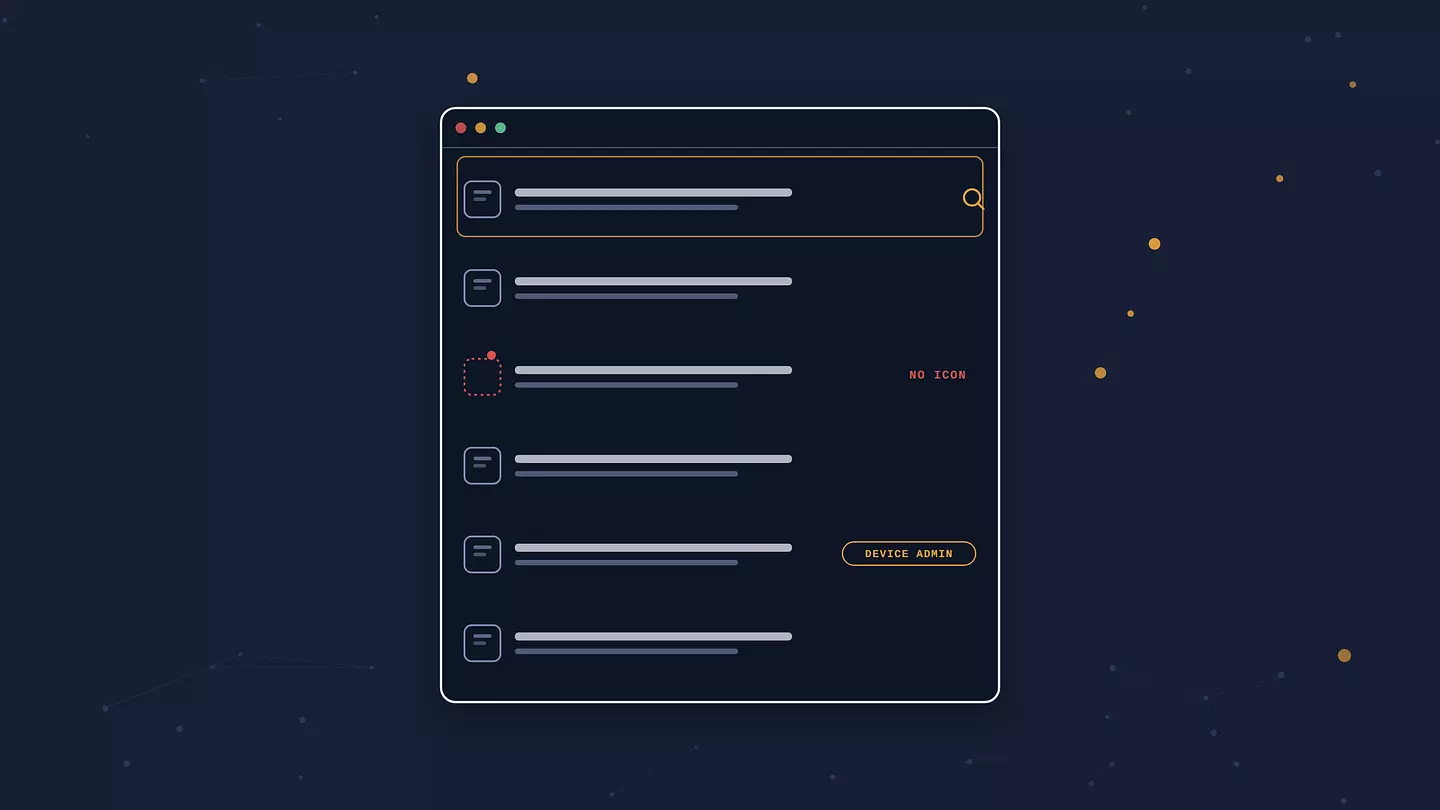
Apps you do not remember installing. Some come from your carrier or phone maker and are harmless clutter. The ones to look at have generic names and no real icon, or ask for device administrator or accessibility access.
Pop-ups and ads showing up outside the browser, on your home screen or on top of other apps. That points to adware, which is less serious than spyware but still means something got onto the phone.
Texts or calls in your history that you did not make. Premium-rate numbers you do not recognize, or messages your contacts received from you that you never wrote.
Login alerts, password-reset emails, or two-factor codes you did not request. This one is worth taking seriously on its own, because it means someone is at least trying your accounts.
Getting locked out of your Apple Account, Google account, or email. If your own password stops working and you did not change it, someone else might have.
Settings that changed on their own. A new VPN or device-management profile, a screen lock that got weaker, permissions switched back on after you turned them off.
The camera or microphone indicator lighting up when you are not using an app that needs it. That is the green or orange dot on iPhone, and a top-corner icon on Android.
The phone is sluggish, crashes, restarts on its own, or will not shut down normally. Old phones do all of this. A phone that changed behavior overnight is more interesting.
Any one of these on its own is usually nothing. Phones age, apps misbehave, updates change things. The pattern that should get your attention is several of these at once, or a single one paired with real account or money activity.
Here is a rough guide to sorting the false alarms from the real ones.
Warning sign | Usually just means | Worth worrying about if |
|---|---|---|
Fast battery drain, phone runs hot | Old battery, a heavy app, a big update installing | It started overnight and an app you do not recognize is at the top of the battery list |
Data usage spike | Video quality change, cloud backup, new app | The app using the data is one you do not recognize |
Unfamiliar app on the phone | Carrier or manufacturer bloatware | Generic name, no icon, or it has device-admin or accessibility access |
Pop-ups and ads | An ad-heavy free app you installed | Ads appear on the home screen or over other apps, not just in one app |
Slow, crashing, restarting | Aging hardware, low storage, buggy update | Behavior changed suddenly and other signs showed up with it |
Two-factor codes you did not ask for | A service testing its system, a mistyped login by someone else | They keep coming, or an account locks you out afterward |
Lost signal for no reason | Network outage, area with poor coverage | It does not come back and you cannot call out, which can point to a SIM swap |
How to check if your phone is hacked, step by step
You can get through all of this in about ten minutes. Do it on the phone itself, and keep a second device nearby for the account checks. Android menu names vary between manufacturers, so if a path below does not match your phone, search the settings app for the keyword instead.
Check battery and data usage for the culprit
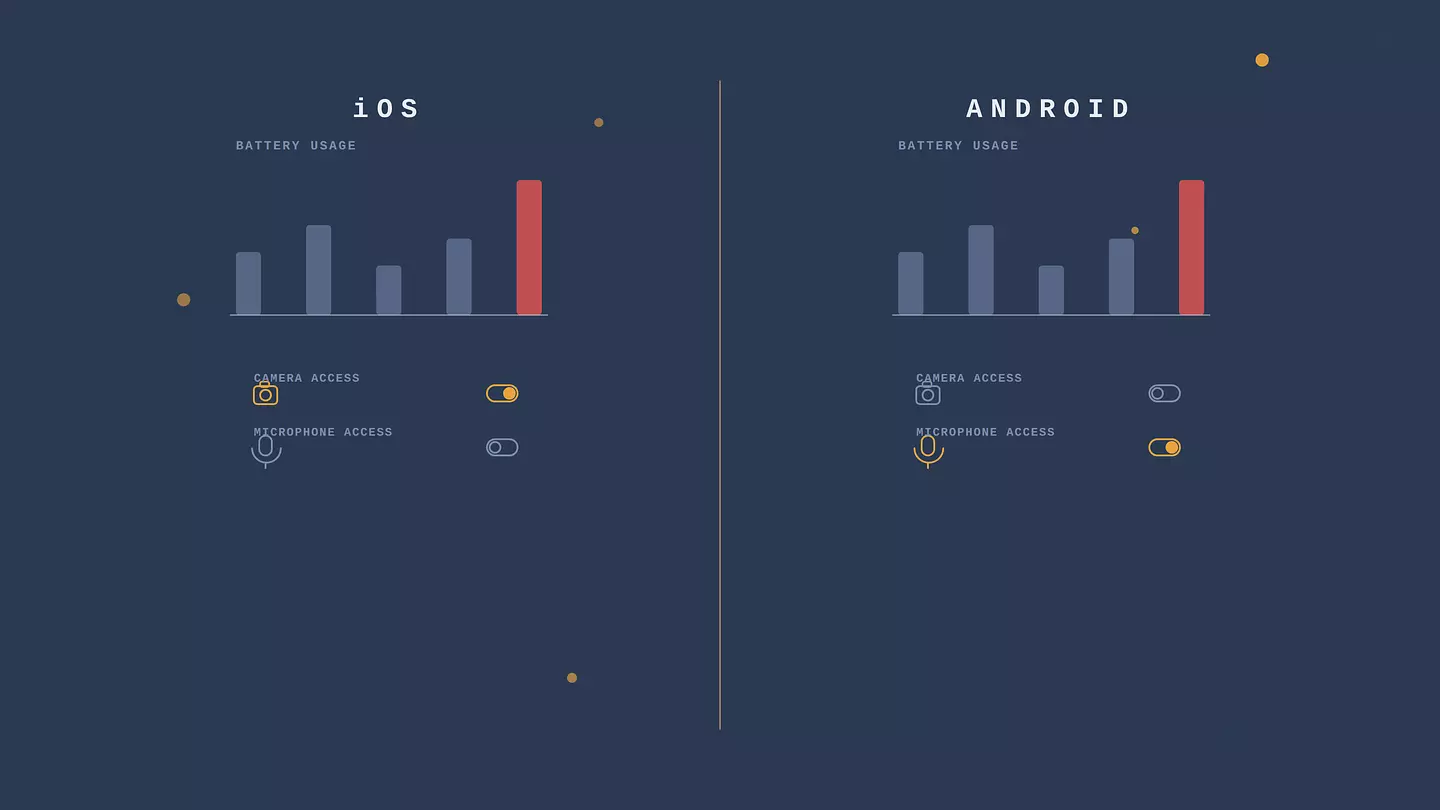
On iPhone, open Settings, then Battery, and scroll to the per-app breakdown. On Android, it is Settings, then Battery, then usage details, plus Settings, then Network and internet, then Data usage. You are looking for an app near the top that you barely use, or one whose name means nothing to you. A legitimate app you use a lot being high is normal. A stranger sitting at the top of the list is the thing to chase.
Scan your app list and remove what you cannot identify
Open your full app list, not just the home screen. On Android, also check Settings, then Security, then Device admin apps, and Settings, then Accessibility. Stalkerware and aggressive adware often hide there, because those permissions let an app read the screen and keep running in the background. Anything you do not recognize and cannot find a straight answer about, uninstall it. If an app will not let you uninstall it, that is a red flag by itself. On Android you may need to boot into safe mode to remove it; on iPhone, check Settings, then General, then VPN and Device Management for a profile you did not add.
Review what has access to your camera, mic, and location
On iPhone, go to Settings, then Privacy and Security, and work through Camera, Microphone, Location Services, and anything under Accessibility that an app should not have. On Android, it is Settings, then Privacy, then Permission manager. Revoke anything holding a permission it has no reason to need. A wallpaper app does not need your microphone.
Check your accounts from the other device
This matters as much as the phone itself. On a computer or another phone, sign in to your Google or Apple Account and your main email, and look at recent security activity: where you are signed in, which devices are connected, whether two-factor is still on, and whether there are login attempts you do not recognize. Check your email's sent folder, and its filters and forwarding rules, because a common move is to quietly forward your mail somewhere else. If you find a device or session you do not know, remove it and change that password.
What those secret dial codes do, and do not, tell you
You will see advice to dial codes like #21#, #62#, or ##002# to find out whether your phone is hacked. On many networks these do one specific thing: show whether your calls and texts are being forwarded to another number, and, with ##002#, switch that forwarding off. They are carrier-dependent, so the exact behavior varies, and they are not a test for malware or spyware. Run them if you want to rule out call forwarding, which is worth checking after a suspected SIM swap. Do not read a clean result as proof the phone is fine.
Run a scan with a security app you trust
On Android, a reputable mobile security app from a known vendor will catch most common malware and adware. Install one, scan, and remove what it flags. On iPhone the picture is different. iOS is locked down enough that traditional virus scanners are not really a thing, and the cleaner apps in the App Store are mostly useless. What matters on iPhone is checking for configuration profiles and device management you did not set up, keeping iOS updated, and knowing that a genuinely compromised iPhone is rare and usually targeted.
Your accounts can be hacked while your phone is fine
Someone getting into your email, Google, Apple, or social media account does not mean they touched your phone. Account takeovers usually run through a reused password, a phishing page, or a leak from some other service, none of which involve your device. If you get a login alert or a password-reset email you did not ask for, check that account's recent security activity and change its password, even when the phone itself seems completely normal. It works the other way around as well: a compromised phone often leads to compromised accounts, which is why the checks above cover both.
How phones get hacked in the first place
Knowing the route in helps you judge how worried to be.
Malicious apps and fake updates. Apps from outside the App Store or Google Play, modified versions of paid apps, or a pop-up warning that your phone is infected and you need to install a fix. The fix is the infection.
Phishing texts and emails. A message about a missed delivery, a bank alert, or a toll you owe, with a link. The link leads to a fake login page or pushes you to install something. This is the most common way in for ordinary people, and it is called smishing when it arrives by text.
Unsecured public Wi-Fi. On an open network with no password, whoever runs it or others on it can try to intercept connections or push you toward fake pages. HTTPS scrambles the contents of most websites now, but it does not hide which sites you are reaching, it does not cover apps that talk to their own servers, and it does nothing about a network steering you to a convincing fake login page. A VPN closes most of that gap by encrypting everything between your phone and its server, and we went through how much protection public Wi-Fi needs separately.
SIM swapping. Someone convinces your mobile carrier to move your number to their SIM, usually using personal details they found or bought. Your phone loses signal, and their phone starts receiving your calls, texts, and two-factor codes. If you suddenly have no service for no reason, call your carrier from another line right away.
Stalkerware installed by someone with access to your phone. This is software sold as parental monitoring or employee tracking that someone can install in a few minutes if they know your passcode and have your phone in their hands. It hides its icon and reports your location, messages, and calls to whoever set it up. If you think someone in your life installed something like this, and that person could react badly to being found out, do not start deleting things yet. Talk to a domestic-abuse support service first. They can help you make a plan that keeps you safe, because removing the app or changing your passwords can alert the person watching. The Coalition Against Stalkerware directory of support organizations lists help by country.
What to do if your phone is hacked
Work through these in order.
Get it offline. Turn on airplane mode, or switch off Wi-Fi and mobile data. That cuts the connection between the phone and whoever is on the other end.
From a different, trusted device, change your important passwords, starting with email, then banking, then anything with payment details saved. Turn on two-factor authentication where it is not already on, using an authenticator app rather than SMS if you can.
Remove the suspicious apps you found, and revoke permissions and device-admin access for anything you are unsure about.
Run a security scan on Android, and clear your browser's history and site data.
If the problems continue, back up your photos and essential files, then do a factory reset and set the phone up fresh. Reinstall apps only from the official store, and do not restore a full backup from after the trouble started, or you may bring the problem back.
Tell people. If messages went out from your number, let your contacts know not to trust anything odd from you. Call your bank if payment details were on the phone.
Call your mobile carrier, especially if you lost signal. Ask them to check for a SIM change and to add a port-out PIN to your account.
One exception to all of this: if stalkerware and someone you know are in the picture, and your safety could be at risk, get advice from a support service before you change passwords or wipe anything.
How to keep it from happening again
Keep iOS or Android and your apps updated. Most real-world phone attacks use holes that were already patched.
Install from the App Store and Google Play only, and be skeptical of an app asking for permissions it has no reason to need.
Do a permissions review every few months. It takes five minutes and it is the single best habit here.
Lock the phone with a six-digit code or a passphrase, not a four-digit PIN, and add two-factor authentication to your email and financial accounts.
Treat links in texts and emails as guilty until proven innocent, especially ones creating urgency about a package, a payment, or an account.
On public Wi-Fi, use a VPN so your traffic is encrypted between your phone and the VPN server. Browsec's free plan covers this case specifically: no account, no data cap, one tap on Android or iOS. If you want the wider picture, we explain what a VPN protects and what it does not, along with the everyday reasons to run one.
Do not jailbreak or root the phone. It removes the security boundaries the operating system relies on.
FAQ
Can someone hack my phone with just my phone number?
Not in the take-over-your-phone sense. Your number alone lets someone send you phishing texts, try to trick your carrier into a SIM swap, or look you up in data broker records. It does not let them install software on your device or read your messages remotely. Those need you to tap something, or need physical access to the phone. The exception is targeted zero-click spyware, which does reach people through their number alone, but it costs a fortune and is aimed at journalists, activists and officials rather than at ordinary phone owners.
Does a factory reset remove a hacker?
For almost all common malware, spyware, and adware, yes. A factory reset wipes the apps and data where that software lives. The exceptions are rare: firmware-level compromises, which are very unusual outside targeted attacks, and anything that comes straight back because you reinstalled it from an infected backup or the same malicious app. Reset, then rebuild from scratch rather than restoring a recent full backup.
Can iPhones be hacked, or is that just an Android thing?
iPhones can be hacked. It is less common because iOS is more locked down and apps are harder to sideload, but targeted spyware such as Pegasus has worked on fully updated iPhones. For most people the realistic iPhone risks are stalkerware installed by someone who knows the passcode, malicious configuration profiles, and phishing. Keeping iOS current handles a lot of it.
Will resetting my phone remove stalkerware?
A full factory reset will remove the stalkerware itself. It will not remove the bigger problem if someone close to you installed it, knows your passcodes, and can reach your phone again. If that is the situation, and especially if the person might react badly, talk to a domestic-abuse support service before you reset anything, so you are not tipping them off before you are ready.
Can I find out who hacked my phone?
Usually not on your own. Malware rarely signs its work, and tracing it takes tools most people do not have. What you can often tell is the route: a phishing text you tapped, an app you sideloaded, or physical access by someone you know. If money was taken or you think you are being stalked, report it to the police and your bank, who can take it further than you can.
Cite this article
Browsec. "Is Your Phone Hacked? How to Check, and What to Do Next." Browsec Blog, September 17, 2026, https://browsec.com/en/blog/how-to-tell-if-your-phone-is-hacked.