- Apps
- Premium
-
VPN Locations
- Help
- Sign up
- Sign in
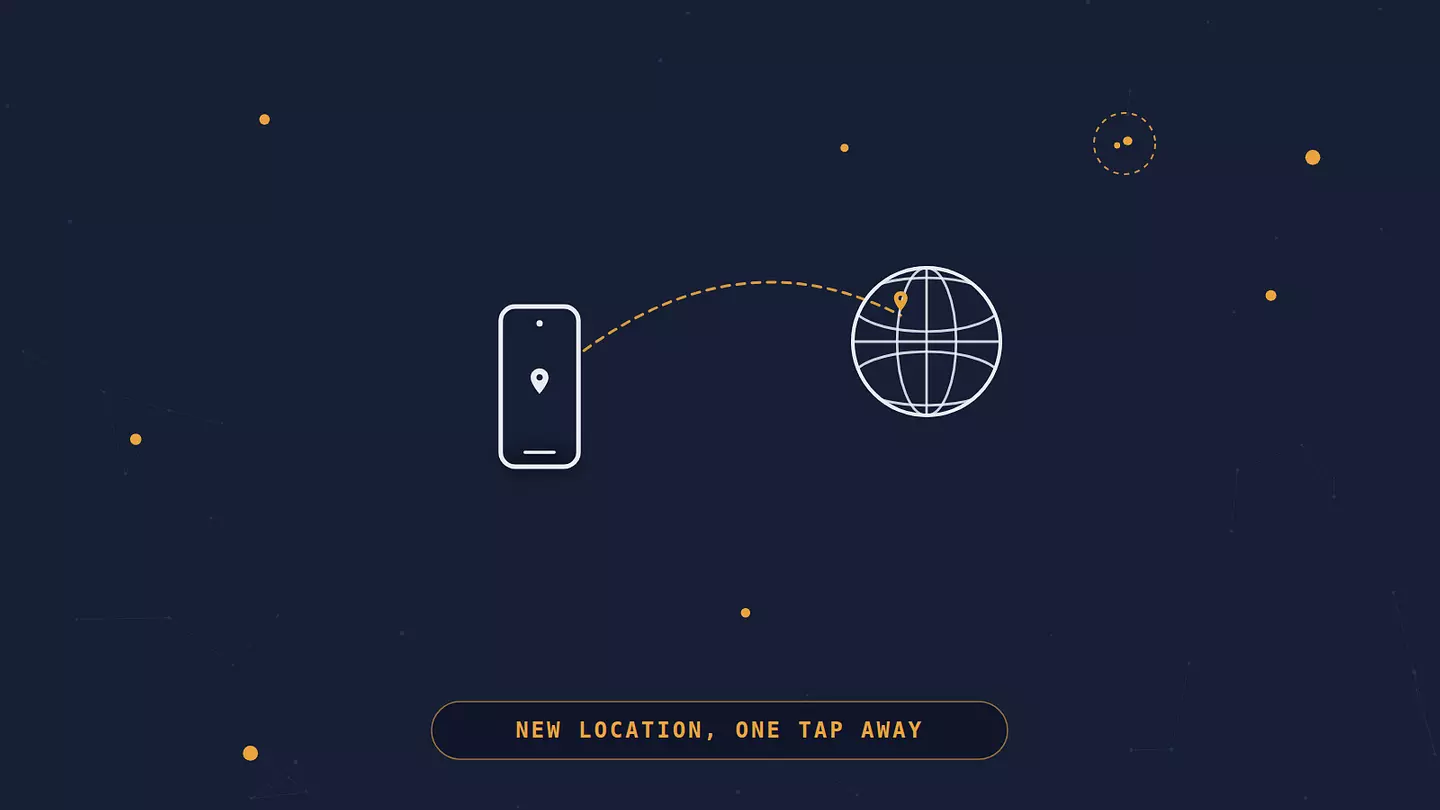
Changing Your Virtual Location Is Easier Than People Think
Contents
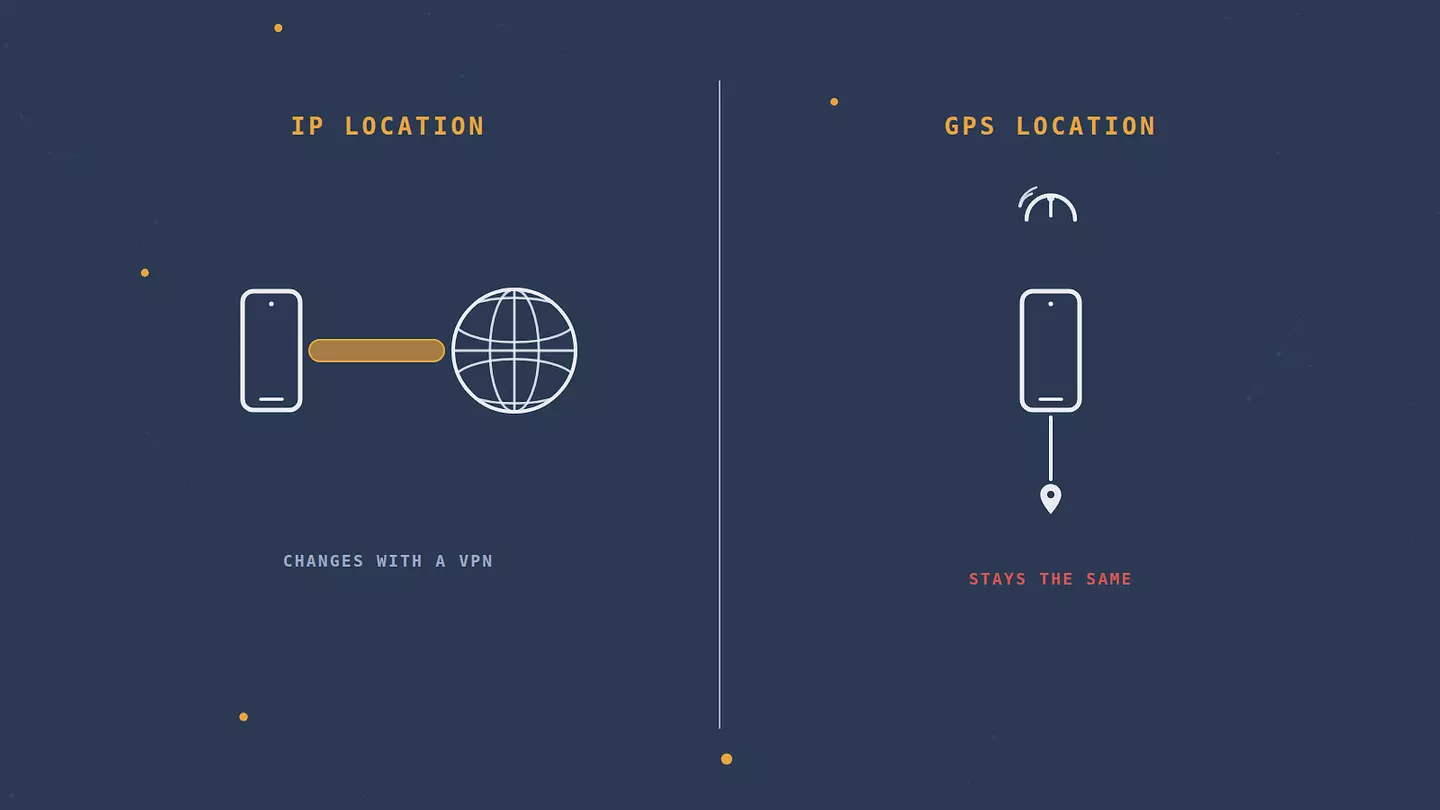
On a phone, "location" can mean a few different things: your IP-based location, your device's actual GPS position, or the country your app store account is set to. Each one is changed a different way.
The fastest way to change your IP-based location on iPhone or Android is a VPN: connect to a server in another country, and websites and apps that determine location from your IP address will see that server's location instead of yours, usually within seconds. But a VPN changes your public IP address, not what your GPS chip reports, so an app that reads your device's sensors directly, like Maps giving you directions, still knows exactly where you are. Which method you need depends on which kind of location you're trying to change.
Why you'd want to change your location
A few reasons come up again and again. You're traveling and want to keep using the apps and subscriptions you already pay for at home. You're comparing prices for flights, hotels, or subscriptions that vary by region. You're a developer or tester checking how an app behaves for users in another country. Or you just don't want every app on your phone building a profile of everywhere you've been, which is a privacy concern on its own, separate from spoofing anything.
Changing your location on iPhone
Use a VPN
This is the easiest method and the one that covers the most ground. A VPN app encrypts your traffic and routes it through a server in whatever country you pick, so any website or app that uses IP-based geolocation sees the server's location instead of yours.
Install a VPN app from the App Store. Some apps ask you to create an account first.
Open the app and pick a server location from the list.
Tap connect, and approve the VPN configuration prompt if iOS asks for it.
Check that it worked by looking up your IP address online. It should now show the country you connected to.
The catch: a VPN changes your IP-based location, not your GPS location. Maps, weather apps, and anything else that reads your phone's actual location sensors will still show where you really are. For browsing, streaming, and most apps that check your region, a VPN is enough. For anything that needs your device to report a different physical spot, it isn't. If you want the fuller picture, we have a deeper breakdown of how a VPN works.
Turn off Location Services
This doesn't change your location, but it stops your iPhone from sharing it in the first place, and that's what a lot of people want when they search for this. Go to Settings, then Privacy & Security, then Location Services, and switch it off entirely, or scroll down and set individual apps to "Never," "Ask Next Time Or When I Share," "While Using the App," or "Always." Turning it off completely will limit or disable anything that genuinely needs your location, like Maps or Find My, so restricting it app by app is usually the better call.
Change your Apple Account country or region
This one doesn't change your location at all. It changes which country's App Store catalog you see, which is useful if you want access to apps or content only available elsewhere. Before switching, spend any remaining balance and cancel subscriptions that would block the change, since Apple requires pending activity to clear first. Then go to Settings, tap your name, tap Media & Purchases, tap Country/Region, and pick the new one. You may also need a valid payment method and billing address for the new region. Apple's own support page walks through the full requirements if you hit an edge case.
Spoofing your GPS location
Technically possible, generally not worth it. Changing the actual GPS coordinates your iPhone reports requires third-party desktop software, and often a jailbreak, since Apple doesn't build this in and doesn't want it done. Jailbreaking strips out the security protections iOS normally has, can break features, breaks Apple's software license terms, and gives Apple grounds to refuse warranty service. Unless you have a specific development or testing reason that requires actual GPS spoofing, a VPN plus adjusted Location Services settings covers most everyday use cases without that risk.
Changing your location on Android
Use a VPN
Same idea as on iPhone: install a VPN app, connect to a server in the country you want, and websites and apps using IP-based geolocation will see that server's location instead of yours. It's the quickest fix for the same reasons (streaming, price comparisons, privacy on public Wi-Fi), and it comes with the same limit: your IP location changes, your GPS doesn't.
Use a mock location app
This is where Android genuinely has an edge over iPhone: built-in developer settings let you feed a fake GPS location to your whole device, no root required. Turn on Developer Options first, usually by going to Settings, About Phone, and tapping the build number seven times, though the exact menu path varies a bit by manufacturer. Install a mock location app from the Play Store, then go back to Developer Options and pick it under "Select mock location app." Once it's set, apps that read your GPS will get the coordinates the mock app provides instead of your real ones. This feature exists for testing location-based features during app development, so use it with that in mind rather than to fool a service that explicitly bans it.
Change your Google Play Store country
Like the Apple Account switch, this changes your app catalog, not your location. Open the Play Store app, go to your account settings, and look for the country and profile options. Google requires you to be in the new country at the time, have a payment method registered there, and wait at least 90 days between changes, so it's not something to switch casually.
Rooting your device to override location system-wide is also possible, but it's a heavier, riskier option that voids your warranty and can leave your phone less secure. For the vast majority of what people are trying to do, a VPN and a mock location app cover it without needing to go that far.
Changing your location on a computer
The same split between IP and physical location applies on a laptop. A VPN changes your IP-based location, which is what websites, streaming services and online stores check. The Browsec desktop app for Windows, macOS and Linux changes it for every app on the computer, mail clients and games included, and comes with Premium.
If what you want is for the computer to stop sharing its physical location, that's a system setting, just like Location Services on a phone. On Windows, go to Settings, then Privacy & security, then Location. On a Mac, open System Settings, then Privacy & Security, then Location Services. In both you can switch location off entirely or decide app by app.
Changing your location in a browser
If you only need one website to see you somewhere else, you don't have to change anything system-wide. A VPN browser extension changes your IP-based location only for the pages you open in that browser, while every other app keeps your real connection. Browsec has extensions for Chrome, Firefox, Edge and Opera, and they work on the free plan. On a phone there's no extension to install, so the mobile app covers the browser along with everything else.
Browsers also have a second way to find you: a site can ask for your precise location, which the browser works out from nearby Wi-Fi networks or, on a phone, from GPS. A VPN doesn't change that answer. When a site asks to "know your location," click Block, or turn the requests off for every site:
Chrome: Settings, then Privacy and security, then Site settings, then Location, and choose "Don't allow sites to see your location."
Firefox: Settings, then Privacy & Security, then Permissions, then the Settings button next to Location, and tick "Block new requests asking to access your location."
Safari on a Mac: Safari, then Settings, then Websites, then Location, and set the default to Deny.
Developers testing a location-based feature can go a step further. In Chrome's DevTools, the Sensors panel lets you type in any coordinates, and the open tab will report them as its location until you close DevTools.
How to check that your location changed
Whatever method you used, confirm it worked before you rely on it. The simplest check is looking up your IP address with an online IP tool and seeing whether the country matches the server you picked. You can also search "what is my location" in a browser as a second check, though keep in mind search engines sometimes use signals beyond your IP address, so the IP lookup is the more reliable of the two. For a proper walkthrough, including what to do if it's showing your real location instead, we have a dedicated guide to verifying your VPN is working.
Which method should you use?
Method | What it changes | Difficulty | Best for |
|---|---|---|---|
VPN | IP-based location (what websites and most apps see) | Easy | Browsing, streaming, price checks, public Wi-Fi security |
Location Services / permissions | What apps are allowed to know | Easy | Privacy, without breaking apps that need real location |
Apple Account / Play Store region | App store catalog and available content | Medium | Accessing apps or content sold only in another country |
GPS spoofing / mock location | The physical location your device reports | Hard (iPhone), Medium (Android) | Development and testing, not everyday use |
If what you're after is changing the location websites and apps see, start with a VPN. Reach for the other methods only when you specifically need to change app permissions, store availability, or your device's reported GPS position.
FAQ
Does a VPN change your GPS location?
No. A VPN changes the IP address your phone shows to the internet, which is what most websites and apps use to guess your location. It doesn't touch your device's actual GPS sensor, so apps that read GPS directly, like Maps, will still show your real location.
Is it legal to change your location on your phone?
Changing your IP-based location with a VPN is legal in most countries, though a handful restrict or ban VPNs; our guide to using a VPN abroad lists where. Adjusting your own device's location settings isn't against the law anywhere we're aware of. What can get you in trouble is what you do with the changed location, like accessing something explicitly restricted in your country or violating a specific service's terms, which is on you regardless of the method you used to get there.
How often can I change my Apple Account or Google Play Store country?
Apple doesn't publish a strict limit but requires you to clear your balance and cancel blocking subscriptions each time, which makes frequent switching impractical. Google requires you to wait at least 90 days between Play Store country changes, and you need to be in the new country with a local payment method to make the switch.
Can apps tell if I'm using a VPN or a fake location?
Some can. Streaming services and banking apps in particular use various techniques to detect VPN traffic and mock locations, and they may restrict access or trigger additional verification if they catch it. This is more about the specific service's detection methods than anything wrong with the VPN itself.
Cite this article
Browsec. "Changing Your Virtual Location Is Easier Than People Think." Browsec Blog, October 29, 2026, https://browsec.com/en/blog/how-to-change-location.