- Apps
- Premium
-
VPN Locations
- Help
- Sign up
- Sign in
The Digital Hygiene Habits Worth Your Time
Contents
Brushing your teeth once a year does nothing, but a little every day works. Digital hygiene is the same, and not every habit matters equally: five cover the most common attacks, and the rest is light upkeep on a schedule.
What is digital hygiene?
Digital hygiene is the set of routine practices that keep your online accounts, devices, and personal data secure and private. It includes using unique passwords and two-factor authentication, keeping software updated, spotting phishing, backing up important files, and limiting the personal information you share online. Like personal hygiene, it works through small regular habits rather than one big effort.
You'll also see it called cyber hygiene. The two mean the same thing, but "cyber hygiene" is more common when talking about companies, where it's about patching servers and managing employee access. This article is about you and your own accounts and devices.
One more thing to clear up: some people use "digital hygiene" for screen time and healthy phone habits, which is usually called digital wellbeing. That's a worthwhile topic, but a different one. Here, it's about security and privacy.
Why digital hygiene matters
Most attacks aren't clever. They don't break encryption or hack into phones like in the movies. They use a security hole that an update has already fixed, log in with a password that leaked somewhere else, or trick someone into handing it over.
Even at large companies with security teams, that's how break-ins usually start. In Verizon's 2026 Data Breach Investigations Report, exploiting known software flaws became the most common way in, at 31% of breaches, overtaking stolen passwords for the first time in the report's 19 years. The same report found that scams on phones succeed 40% more often than email phishing.
If these tricks work on companies, they work even better on individuals without an IT department, and they're exactly what basic hygiene defends against. If your password for one site leaks and you reused it elsewhere, every one of those accounts is now open. If it was unique and your account also asks for a second step, the leak goes nowhere. Our roundup of data breach statistics has the bigger picture.
The five habits that do most of the work
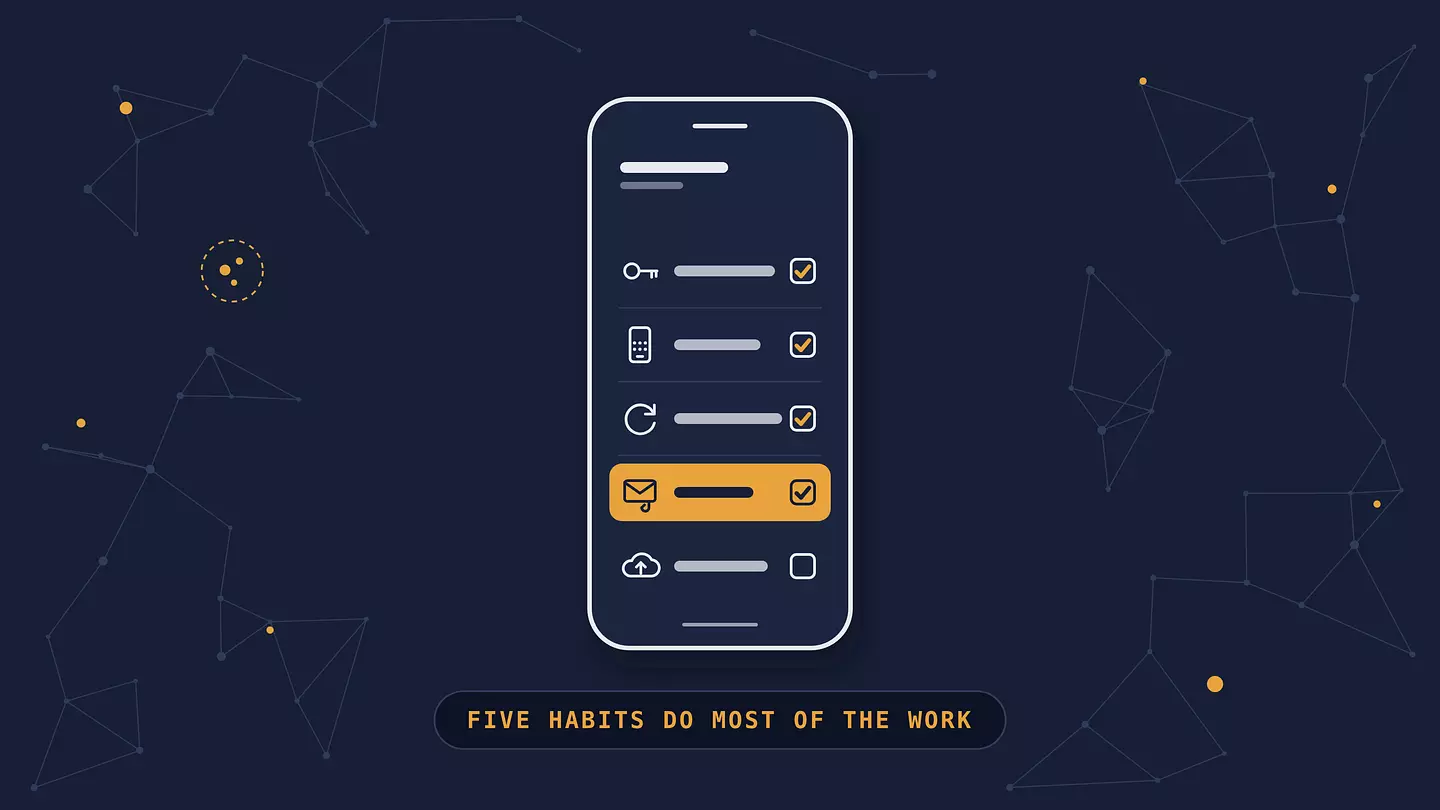
If you only do these five things, you've covered the ways most accounts actually get broken into.
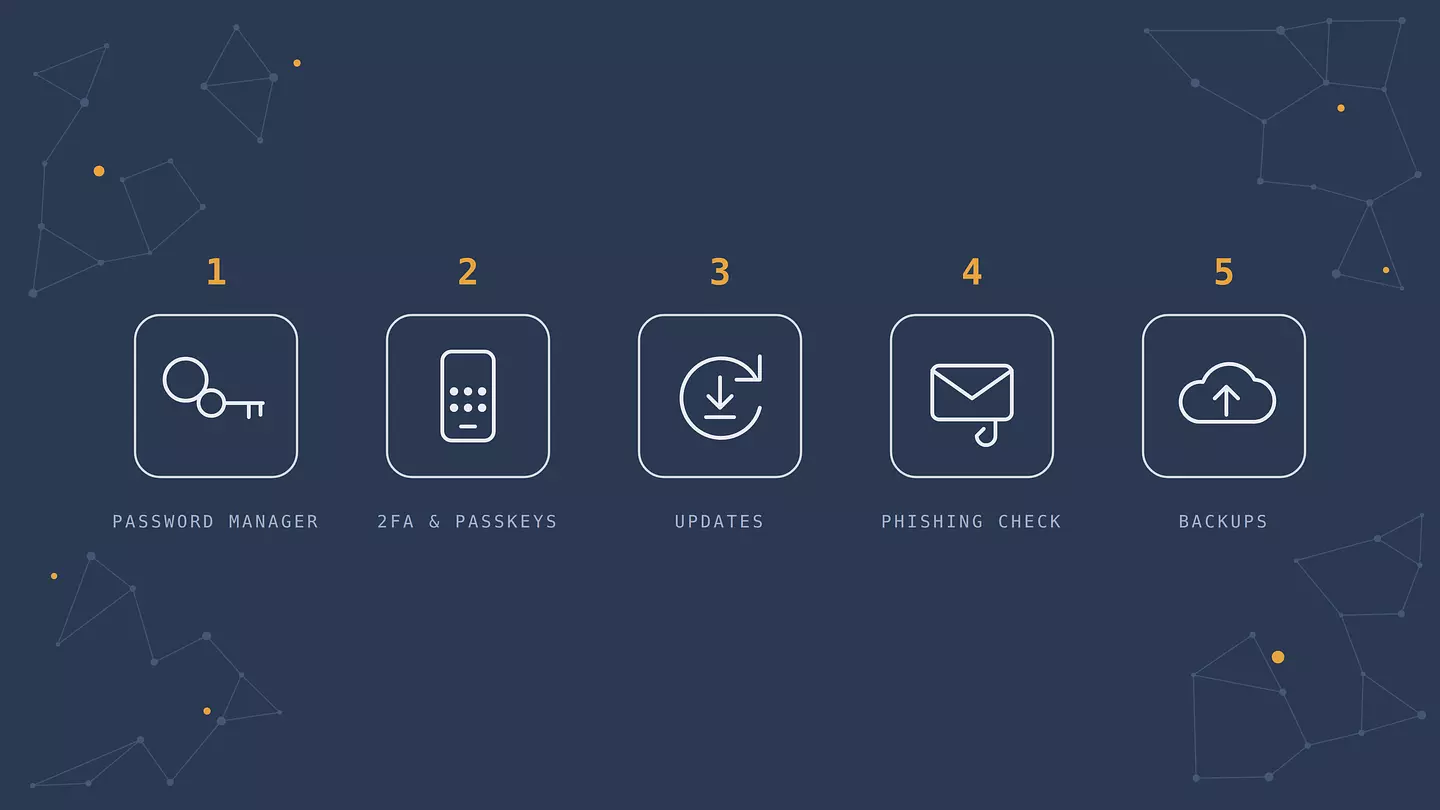
1. Use a password manager and a unique password everywhere
A password manager generates and remembers a different strong password for every account, so one leak can't open the rest. Most password managers also fill in passwords only on the matching site, which quietly protects you from fake login pages.
What makes a password strong has changed. NIST's current guidelines, the US standard many companies follow, put length first: at least 15 characters for a password used on its own. They also tell sites to stop forcing a mix of symbols and numbers, and to stop making people change passwords on a schedule. A long random password from a manager, or a passphrase of several unrelated words, is far stronger than something like "P@ssw0rd!".
2. Turn on two-factor authentication, and passkeys where you can
Two-factor authentication (2FA) asks for a second proof after your password, like a code from an app or a tap on your phone. It works remarkably well: a Microsoft Research study of business accounts found it cut the risk of an account being compromised by 99.22%. An authenticator app is stronger than codes sent by SMS, since SMS can be hijacked if someone takes over your phone number, but SMS is still far better than nothing.
Save the recovery codes a site gives you when you turn on 2FA, somewhere safe like your password manager. If you lose your phone, they can be the only way back into your account.
Start with the accounts everything else depends on: your main email (it can reset every other password), your bank, and your Apple or Google account. Where a site offers passkeys, use them. A passkey replaces the password with a digital key stored on your device or in your password manager, which you unlock with your fingerprint, face, or PIN. It resists phishing because it only works on the real site.
3. Let your devices and apps update themselves
Updates fix security holes that attackers already know about, and they move fast: Verizon found attackers using AI to exploit known flaws within hours, not months. Turn on automatic updates for your phone, computer, browser, and apps, and restart when your device asks. An old phone or router that no longer gets updates is a real weak spot, so plan to replace it rather than keep it going forever.
4. Slow down before you click
Phishing messages used to be easy to spot by their bad grammar. With AI writing tools, they now read perfectly. The most common giveaway is still pressure: your account will be closed, a package is stuck, your bank needs you to confirm something right now. But be just as wary of any unexpected request for a password, a verification code, or a payment, even a calm one from someone you know. When a message asks for any of these, don't use its link. Open the app or type the site's address yourself and check there.
5. Back up what you can't replace
Photos, documents, and anything you'd be heartbroken to lose should exist in more than one place. The classic rule is 3-2-1: three copies, on two different kinds of storage, with one kept somewhere else, such as the cloud. For most people, automatic cloud backup on the phone plus an occasional copy to an external drive covers it. Just make sure your cloud service keeps real backups or older versions, not only a sync: with plain syncing, a file you delete or ransomware encrypts on your phone gets deleted or encrypted in the cloud too. A backup is also your best answer to ransomware and to a lost or stolen phone.
Habits that tighten your privacy
These don't stop as many attacks as the five above, but they shrink what's exposed and what can be collected about you.
Review app permissions. Switch off location, contacts, camera, and microphone access for apps that don't need them.
Delete accounts you no longer use. An old account is a copy of your data that can still leak, and the more of them you have, the larger your digital footprint.
Tighten privacy settings on social media, and think twice before posting details someone could use to guess your passwords or security answers, like your pet's name or your first school.
Keep your recovery email and phone number current, so you can get back into an account if you're locked out.
Lock every device with a PIN, fingerprint, or face unlock.
Use a browser that blocks third-party trackers by default.
Secure your home network, which starts with changing the router's default password. Our guide to securing your home Wi-Fi walks through it.
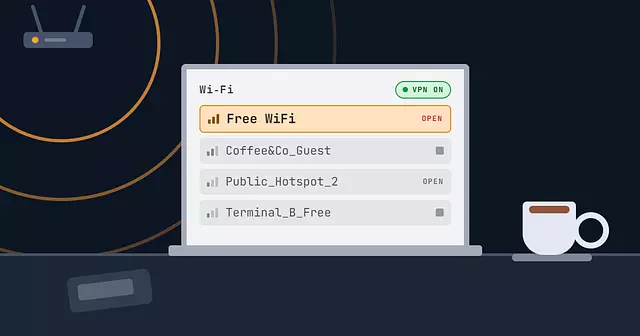
Use a VPN on networks you don't control, like café or hotel Wi-Fi. We explain what a VPN protects on public Wi-Fi and what it doesn't.
A digital hygiene checklist
Here's how it all fits into a schedule. The first row takes an afternoon. After that, it's a few minutes here and there.
When | What to do |
|---|---|
Once | Set up a password manager. Turn on 2FA for email, bank, and your Apple or Google account, and save the recovery codes. Turn on automatic updates and automatic backups. Set a screen lock on every device. |
Every month | Install any updates that are waiting. Glance at bank and card statements for charges you don't recognize. |
Every 3 months | Replace any reused or weak passwords your password manager flags. Review app permissions. Check your email address on Have I Been Pwned for new breaches. |
Every year | Delete accounts you no longer use. Review social media privacy settings. Check your recovery email and phone. Make sure your backups actually restore. Retire devices that no longer get updates. |
Outdated advice you can drop
Some old rules make you less safe, or just waste your time.
"Change your passwords every 90 days." Forced changes push people toward predictable tweaks like Summer2026 becoming Fall2026. NIST now says to change a password only when there's a reason, like a breach.
"Use at least one symbol, one number, and one capital letter." Length matters far more than symbols. A long passphrase is both stronger and easier to type.
"Incognito mode keeps me private." It mainly stops your browser from keeping history and cookies on your device after you close the window. Sites, your internet provider, and the network you're on still see your activity.
"I'm not interesting enough to hack." Most attacks are automated and aim at everyone at once. Your email account is valuable simply because it can reset everything else.
"Antivirus is all I need." Built-in protection on modern phones and computers is good, but it doesn't stop you from typing your password into a fake site or reusing it everywhere, and many common attacks target your accounts rather than your files.
If something already went wrong
If a site you use announces a breach, change that password first, then anywhere you reused it, and make sure 2FA is on. If you clicked a phishing link and entered a password, change it right away from the real site and check the account's recent activity and connected devices. If your phone is acting strangely, our guide on how to tell if your phone is hacked covers the signs and the next steps.
FAQ
What's the difference between digital hygiene and cyber hygiene?
They describe the same idea. "Cyber hygiene" is used more often for organizations, where it includes things like patching company systems and managing staff access. "Digital hygiene" is used more often for individuals and their personal accounts and devices.
How often should I do a digital hygiene check?
Do the setup once, then spend a few minutes a month on updates and statements, and do a longer review every few months and once a year. The checklist above breaks it down.
Is digital hygiene the same as digital wellbeing?
No. Digital wellbeing is about screen time, notifications, and your relationship with your devices. Digital hygiene, as used here, is about keeping your accounts and data secure. Some people use the terms interchangeably, which is where the confusion comes from.
Do I still need antivirus?
On a modern phone, the built-in protections and the official app store cover most people. On Windows, the built-in Microsoft Defender is a solid baseline for most home users, as long as the system stays updated and you install software from trusted sources. What no antivirus can do is replace the five habits above, since many common attacks go after your accounts, not your files.
Where does a VPN fit into digital hygiene?
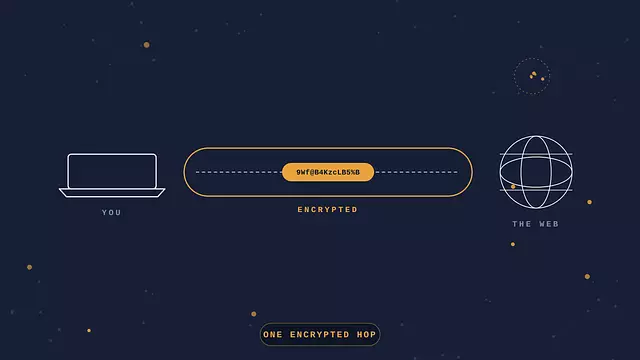
It's a privacy habit rather than one of the core five. A VPN encrypts traffic between your device and the VPN server, which matters most on public Wi-Fi, and hides your IP address from the sites you visit. It doesn't protect a reused password or stop you from clicking a phishing link, so it works alongside the other habits, not instead of them.
Cite this article
Browsec. "The Digital Hygiene Habits Worth Your Time." Browsec Blog, September 30, 2026, https://browsec.com/en/blog/digital-hygiene.