- Uygulamalar
- Premium
-
VPN Konumları
- Yardım
- Kayıt
- Giriş
How to Secure Your Home Wi-Fi, Step by Step
İçindekiler
- Why your home Wi-Fi is worth locking down
- Start here: the changes that matter most
- Wi-Fi encryption standards at a glance
- Next: shrink the attack surface
- Add a VPN for the traffic your router can't protect
- Security steps that sound good but barely help
- Think your network's already been compromised?
- A short recurring checklist
- FAQ
Securing your home Wi-Fi mostly comes down to five settings on your router: turn on WPA3 (or WPA2) encryption, set a long Wi-Fi password, change the router's admin login, keep the firmware updated, and move your smart-home gadgets onto a separate network. Do those and you've closed the gaps that actually get exploited. The rest of this guide walks through each one, plus some smaller tweaks worth doing and a few popular tips that aren't worth your time.
Why your home Wi-Fi is worth locking down
An unprotected network is a problem long before anyone steals your identity. The most common outcome is boring: neighbors or passersby latch onto your connection, and your speeds drop. But a weak network opens the door to worse things too.
Anyone on your main Wi-Fi network can usually reach the other devices on it: your laptop, your phone, your printer, any file shares. That's a lot of trust to hand to whoever guessed the password. Most web browsing is encrypted by HTTPS, so a snooper on the network can't simply read it, but they can still see which sites and services your devices talk to, probe those devices for open ports and weak logins, and reach admin pages that were only ever meant to be seen from inside the house. On an open or WEP-encrypted network, whatever traffic isn't already encrypted is readable too.
Then there's the router itself. It's a small computer that's on 24/7, often running firmware from years ago. If someone gets into it, they can change your DNS settings to redirect you to fake sites, watch where every device connects, or fold the router into a botnet. Smart-home devices have the same problem in miniature: a cheap camera or plug with a known vulnerability becomes a foothold once someone is on your Wi-Fi.
Start here: the changes that matter most
If you only have half an hour, spend it here. These five changes fix the weaknesses that get networks compromised in the first place.
Turn on the strongest encryption your router supports
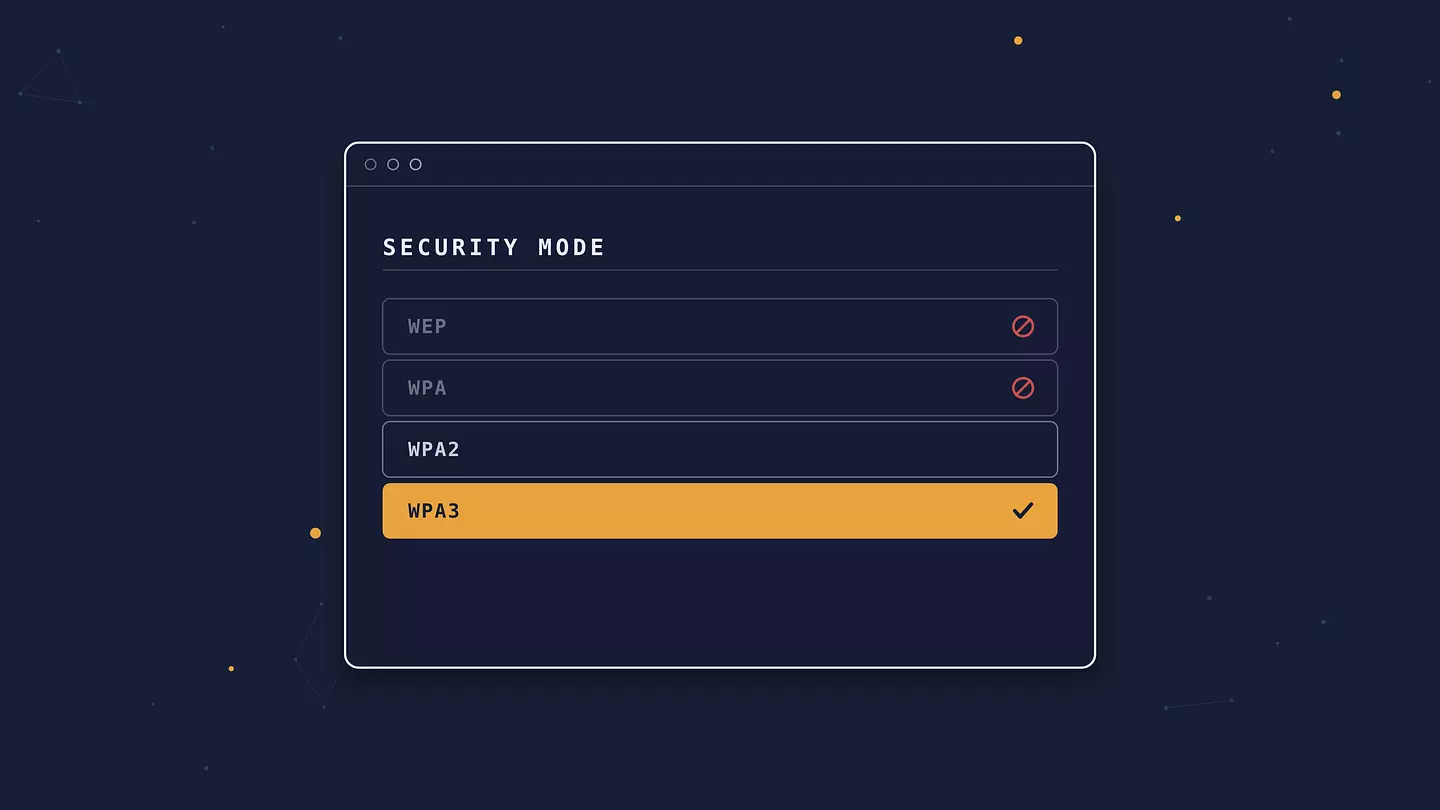
Open your router's settings and set the security mode to WPA3. If some of your older devices can't connect, use WPA2 (sometimes labeled WPA2-PSK or WPA2-Personal), or the mixed WPA2/WPA3 mode. What you want to avoid is WEP or plain WPA. Both are broken, and a WEP key can be recovered within minutes using free tools.
Encryption is what stops someone in range from reading your traffic straight out of the air. Which version you run also matters. On WPA2, anyone who knows the password and was capturing traffic when a device joined can later decrypt that device's activity, and the password itself can be attacked offline, though a long one holds up fine. WPA3 closes both of those gaps. If your router doesn't list WPA3 at all, check for a firmware update. If it still isn't there afterward, the router is old enough that replacing it is a reasonable move.
Replace the default Wi-Fi password
The password printed on the router is better than having none, but you don't know how it was generated, how widely that method is known, or who has already seen the sticker. Setting your own removes that uncertainty. Aim for at least 16 characters, or a passphrase of four or five unrelated words, which is easier to type into a smart TV and just as hard to guess.
You'll only enter this occasionally, when a new device joins, so length costs you very little. Store it in a password manager and share it with guests from there, or write it down somewhere at home. It doesn't need symbols and numbers if it's long enough. Length is what matters.
Change the router's admin login
This is a different credential from your Wi-Fi password, and people miss it constantly. It's the username and password you use to reach the router's settings page, usually by typing an address like 192.168.1.1 or 192.168.0.1 into a browser. On a lot of routers it still ships as admin / admin or admin / password.
If that login is still the default, anyone who gets onto your network can open your router's control panel and change whatever they want. On routers that expose their admin page to the internet, the risk reaches past your local network. Set a strong, unique password for it, and while you're on that page, look for an option to restrict the admin panel to wired connections or to specific devices.
Update the firmware and turn on automatic updates
Router firmware gets security fixes just like your phone does, and just like your phone, those fixes only help once they're installed. Log into the router, find the firmware or system update section, and install whatever's pending. If there's an automatic-update toggle, turn it on. Most routers from the last few years have one.
Check manually every few months as well, especially on an older model. At some point the manufacturer stops releasing updates entirely. When a router hits that end-of-support point, newly discovered vulnerabilities never get patched, and that's the clearest signal it's time for a new one.
Put your smart devices and guests on a separate network
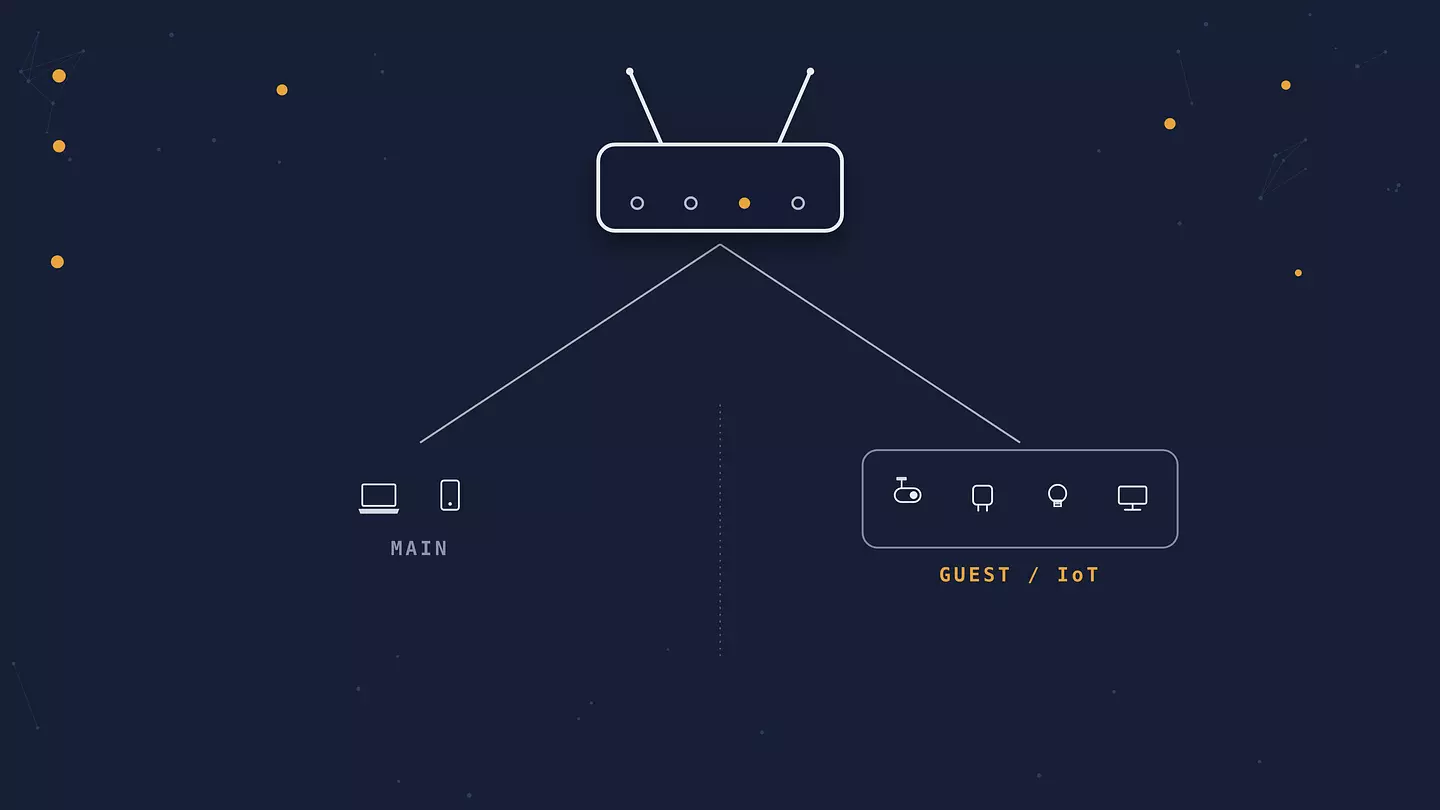
Most routers can run a second network, usually called a guest network, on top of your main one. Devices on it can reach the internet but not your main network, and with client isolation switched on, not each other either. Use it for two groups: visitors, and your smart-home gadgets.
The reason to separate the gadgets is that a smart plug, doorbell, or off-brand camera is often the least secure thing in your house. It might never get a firmware update, and it might ship with hard-coded credentials. If one gets compromised and it's sitting on your main network, it's a short hop to your laptop. On an isolated network, a compromised camera is just a compromised camera. Some routers call this an IoT network; others expose client isolation as its own toggle. Any of these options gets you the separation you want.
Wi-Fi encryption standards at a glance
Standard | Introduced | Status | Use it? |
|---|---|---|---|
WEP | 1999 | Broken; a key can be recovered within minutes | No. Replace the router if this is all it offers. |
WPA | 2003 | Obsolete, known weaknesses | No, except as a last resort for one legacy device. |
WPA2 | 2004 | Still solid for home use | Yes, if WPA3 isn't available. |
WPA3 | 2018 | Current standard, strongest protection | Yes. First choice. |
WPA2 and WPA3 are Wi-Fi Alliance certification programs; the dates are when each standard was introduced.
Next: shrink the attack surface
With the basics done, this next set closes off features and details an attacker could use and you probably don't need.
Turn off WPS
Wi-Fi Protected Setup lets you connect a device by pressing a button on the router or entering an eight-digit PIN. The PIN method has well-known weaknesses: on a lot of routers it can be worn down by brute force far faster than an eight-digit number should allow, sometimes within hours, and cracking it exposes your actual Wi-Fi password. Turn WPS off. Typing a passphrase once per device is a small price.
Turn off remote management
Remote management, also called remote administration or remote access, lets you reach the router's settings from outside your home network. Unless you have a specific reason to log into your router while you're away, switch it off. It's a login page exposed to the entire internet, and those get scanned and attacked around the clock.
Turn off UPnP
Universal Plug and Play lets devices on your network open ports in the router's firewall automatically, without asking you. It's convenient for game consoles and some peer-to-peer apps, and it's also a way for malware on an already-infected device to expose itself to the internet. If you don't game or run servers, disable it. If you do and something breaks, you can turn it back on, or set up manual port forwarding for just the app that needs it.
Rename your network
Your network name, or SSID, often gives away the router's make and model by default, something like NETGEAR58 or ARRIS-A1B2. That hands someone scanning for targets a head start on which vulnerabilities to try. Change it to something that identifies neither the hardware nor you. Some installer-set names include a surname or street address, so check for that too. You don't have to hide the network, which is a separate setting covered below and not worth the hassle. Broadcasting a neutral name is fine.
Add a VPN for the traffic your router can't protect
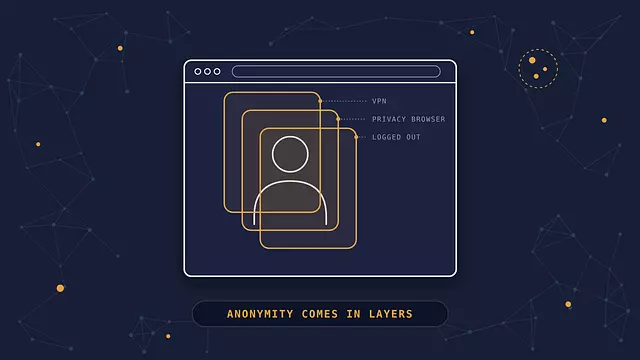
Everything above secures your network. A VPN protects your traffic after it leaves your device. When you connect through a VPN, the traffic between your device and the VPN server is encrypted and wrapped so its real destination is hidden. Your internet provider, and anyone else between you and that server, can see that you're using a VPN and roughly how much data is moving, but not the contents or the sites you're actually reaching.
That's useful at home for a few reasons. Your internet provider can no longer build a record of the sites you visit, which some providers use for ad targeting or sell to data brokers. The sites you visit see the VPN server's address instead of your real one. And a router that's been tampered with can't read the contents or destinations of traffic you send through the tunnel, though it can still see the tunnel itself, throttle it, or interfere with DNS before the VPN connects. The trade is that your VPN provider can now see that traffic instead of your ISP, so it's worth using one that's clear about what it does and doesn't log. What a VPN does and where it stops helping is worth a read if you want the full picture.
Be clear on what it doesn't do, though. A VPN won't fix a weak Wi-Fi password, patch your router's firmware, or protect the other devices on your network. It's a layer on top of a secured network, not a replacement for one.
You can run a VPN in two ways. Per-device means installing an app or browser extension on each phone and laptop, which is simple and lets you switch it on and off per device. Router-level means configuring the VPN on the router itself, so everything behind it is covered, including devices that can't run VPN software. Router-level setup is more work, depends on your router supporting it, and only covers a device fully if the router tunnels all of its traffic, IPv6 included. There, the choice of VPN protocol affects both speed and compatibility. For most people, running it per-device is enough. And once you leave the house, public networks carry risks your home Wi-Fi doesn't, so keeping the VPN on when you're out matters more.
Browsec şu platformlarla uyumludur:
Security steps that sound good but barely help
These come up in almost every list of Wi-Fi tips. They aren't harmful, but they cost time and give back very little, so treat them as optional.
Hiding your SSID
Turning off network name broadcast feels like going invisible, but your router and your devices still name the network every time they connect, and any basic scanning tool picks it up in seconds. The main effect is that connecting your own devices gets fiddlier, and some handle a hidden network poorly.
MAC address filtering
This lets you build an allowlist of devices by their hardware address. The catch is that those addresses are visible to anyone monitoring the local wireless, even before they've joined the network, so an attacker can read an approved one and set their own device to match. You get a list to maintain every time something new joins the house, in exchange for very little: the check stops a casual freeloader and nobody else.
Turning Wi-Fi off at night
Fine if it's easy, and it does save a little power, but as a security measure it only helps for the hours you're away and resets the moment you're back. Firmware updates and a strong password protect you the whole time.
Think your network's already been compromised?
A few signs are worth paying attention to: devices you don't recognize in the router's connected-devices list, internet that's suddenly slow at all hours, browser redirects to pages you didn't request, security warnings on sites that were always fine, or settings on the router you didn't change yourself, DNS servers especially.
If you suspect something, here's the order to work through it:
From a device you trust, log into the router and change the admin password.
Change the Wi-Fi password too. This kicks every device off, so you'll reconnect the ones you actually own.
Check the DNS settings. They should be blank, set to automatic, or set to a provider you chose. If there's something unfamiliar there, reset it.
Update the firmware, then reboot the router.
If anything still looks off, do a factory reset and set the router up again from scratch. Don't restore from a saved config file, since that can carry the tampered settings back.
Once the network is clean, update every device on it, and run a security scan on the computers.
If the router is old or no longer getting firmware updates, treat a compromise as the push to replace it rather than something to keep patching.
A short recurring checklist
Wi-Fi security isn't a one-time job, but the upkeep is light. Every few months:
Install any pending firmware updates, or confirm automatic updates are still on.
Look through the list of connected devices and remove anything you don't recognize.
Make sure your guest and IoT network is still separate and still has its own password.
Check whether your router is still supported. If the manufacturer has stopped releasing updates, start shopping.
As a rough rule of thumb, look at replacing a home router after about five years, sooner if it's already dropped off the update list. Hardware that old tends to be stuck on outdated standards anyway.
FAQ
Is WPA3 worth buying a new router for?
On its own, not urgently. WPA2 with a long, unique password is still solid for home use, and it isn't the weak point on most networks. But if your router is old enough to lack WPA3, it's usually also missing recent security patches and automatic updates, and at that point the router itself is worth replacing. Treat WPA3 as one reason among several, not the deciding factor.
How often should I change my Wi-Fi password?
There's no fixed schedule. A long passphrase that nobody outside your household knows can stay as it is for years. Change it when someone you don't want on the network has had it, when a device that stored it is lost or sold, or when you suspect an unwanted device is connected. Routine monthly changes mostly just lead to shorter, weaker passwords.
Does hiding my network name make it more secure?
Barely. A hidden network still broadcasts its presence whenever devices connect, and free tools reveal the name almost immediately. It mainly makes your own devices harder to set up. Encryption and a strong password are what actually protect the network.
Do I need a VPN if my Wi-Fi already has a password?
They do different jobs. Your Wi-Fi password controls who can join the network. A VPN encrypts your traffic after it leaves your devices, which keeps your internet provider from recording the sites you visit and hides your IP from those sites. A secured network doesn't do either of those things, so a VPN is still useful at home, and more so on networks you don't control.
Is it safe to keep the Wi-Fi password printed on the router?
It's a weak default. You don't know how that password was generated or who has seen the sticker, and everyone who has been to your home has had a look at it. Set your own long password and you've removed the guesswork. Change the separate admin login too, which is sometimes printed on the same label.
Can someone see my browsing history through my router?
Whoever controls the router can see which sites and services each device connects to, though not the contents of encrypted pages. That's normally just you. If someone has gained access to your router, or pointed its DNS at a server they run, they can log that activity. A VPN prevents it by encrypting the traffic before it reaches the router.
Bu makaleye atıf yapın
Browsec. "How to Secure Your Home Wi-Fi, Step by Step." Browsec Blog, 4 Eylül 2026 Cuma, https://browsec.com/tr/blog/how-to-secure-home-wifi.