- Uygulamalar
- Premium
-
VPN Konumları
- Yardım
- Kayıt
- Giriş
What the Wi-Fi Owner Can See When You Browse
İçindekiler
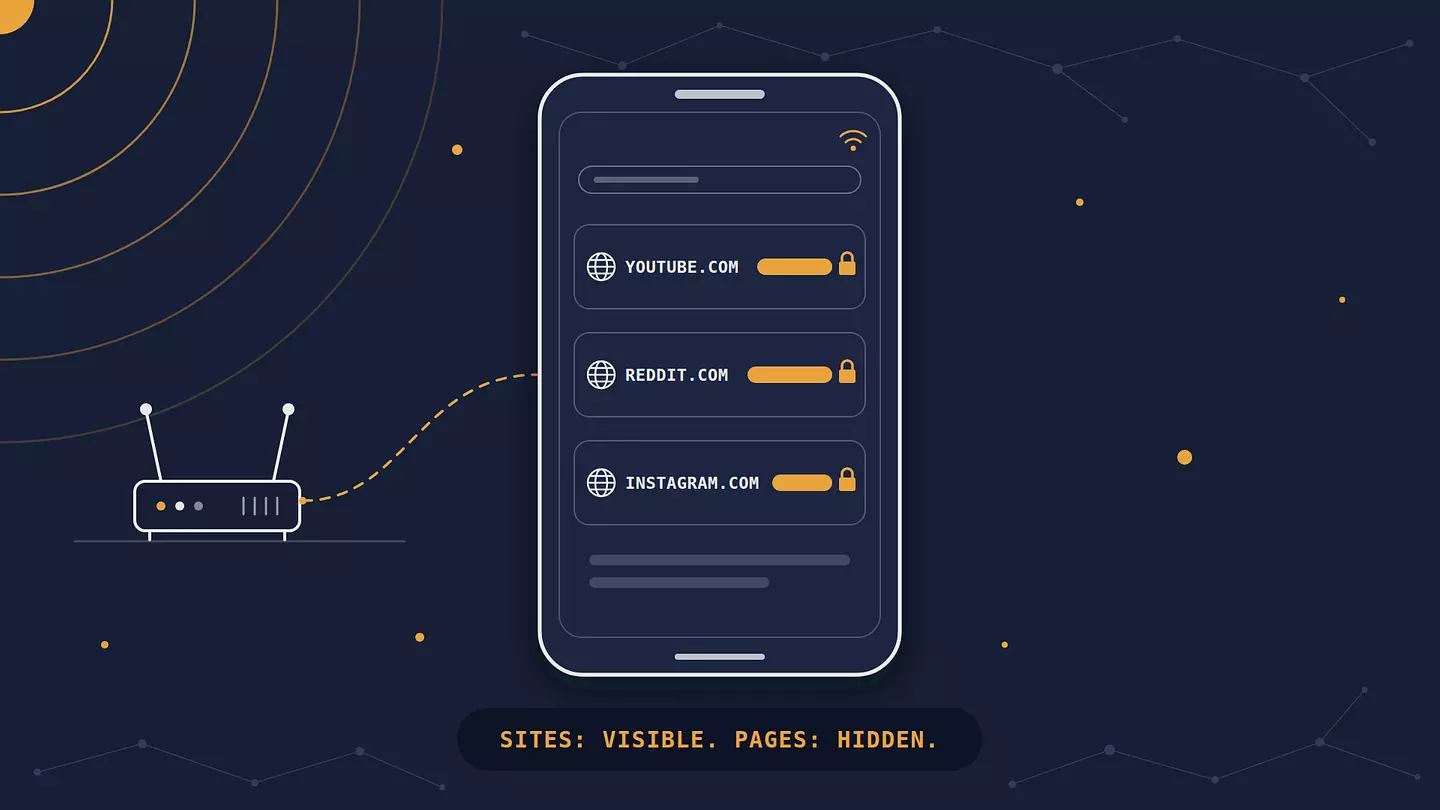
Whoever runs the Wi-Fi can usually see which sites your phone connects to, at the level of the domain name (youtube.com, reddit.com), plus when you connected and how much data you used. What they can't see on an HTTPS site is the specific page, what you searched for, what you typed, or your messages.
Incognito mode doesn't change any of this. A VPN hides the sites, though the owner can still tell you're using one.
How much of that they actually see depends on how the network is set up, what's installed on your phone, and a couple of technical leaks most people have never heard of.
What the Wi-Fi owner can see
Everything your phone sends over someone else's Wi-Fi passes through their router, which puts the owner in a position to record parts of it. Here's what that covers:
The domains your phone connects to, like instagram.com or bbc.co.uk. On HTTPS sites, that's where it stops: the rest of the address after the slash stays hidden.
When each connection happened and roughly how long it lasted.
How much data your phone sent and received, in total and often per connection.
Your phone itself: its name on the network (often something like "iPhone" or the name you gave it), its IP address on the local network, and its MAC address, the ID a device uses on local networks (on modern phones, usually a private address made up for that network rather than the real hardware one).
The part people forget: on a phone, most traffic doesn't come from the browser. Apps talk to their own servers constantly, and those server names are just as visible as websites. A TikTok session shows up as connections to TikTok's content servers. Spotify, WhatsApp, and your banking app all leave their own trail. So the owner can often tell which apps you use and when, even if you never open a browser.
Your phone also generates a lot of background noise. It checks in with Apple or Google, syncs photos, refreshes the weather, and fetches ads inside apps. A raw log of a phone's traffic is full of domains you never "visited," which makes it less precise than it sounds, but a determined person can still pick out the interesting parts.
What stays hidden
On an HTTPS connection (the padlock in the address bar), the page address, the content, and anything you type travel encrypted between your phone and the site. According to Google's HTTPS transparency data, well over 90% of pages loaded in Chrome on Android now use HTTPS. So for almost everything you do, the owner can't see:
The specific page. They see reddit.com, not which subreddit or thread.
What you search for. A Google search shows up as google.com, and the query itself is encrypted.
Anything you type into a form: passwords, card numbers, addresses.
Your messages, and what you watch or listen to.
The exception is a plain HTTP site, without the S. There, the owner could see the full address, the content of the page, and anything you submit. Chrome labels these "Not secure," and starting with Chrome 154, rolling out in October 2026, its "Always use secure connections" setting is on by default, so Chrome asks before loading one. On an older version, you can turn it on in Chrome's security settings. Firefox has the same thing under the name HTTPS-Only Mode.
What the owner can see | Without a VPN | With a VPN |
|---|---|---|
Your phone (name, MAC address) | Yes | Yes |
When you're online and how much data you use | Yes | Yes |
Which sites and apps you connect to | Yes, the domain names | No, just a connection to the VPN server |
Which pages you open on a site | Only on HTTP sites | No |
What you search for | Only on HTTP sites | No |
Messages, passwords, what you type | Only on HTTP sites | No |
That you're using a VPN | Not applicable | Yes |
The exception is a work or school phone with a monitoring certificate installed, where the network can see more than this table shows. More on that below.
How domain names leak even with HTTPS
If HTTPS encrypts the connection, how does the owner see the domain at all? Two places, both before the encryption kicks in.
The first is DNS. Before your phone can open nytimes.com, it has to ask a DNS server (the internet's address book) for that site's IP address. On most home and public networks, that question goes out unencrypted, and often to the router itself, which passes it along. Anyone who can see the network can read the list of names your phone is looking up.
The second is SNI, short for Server Name Indication. When your phone starts an HTTPS connection, the very first message it sends names the site it wants, normally in plain text, so that a server hosting many sites knows which certificate to answer with. Even if your DNS is private, that first message still announces the domain.
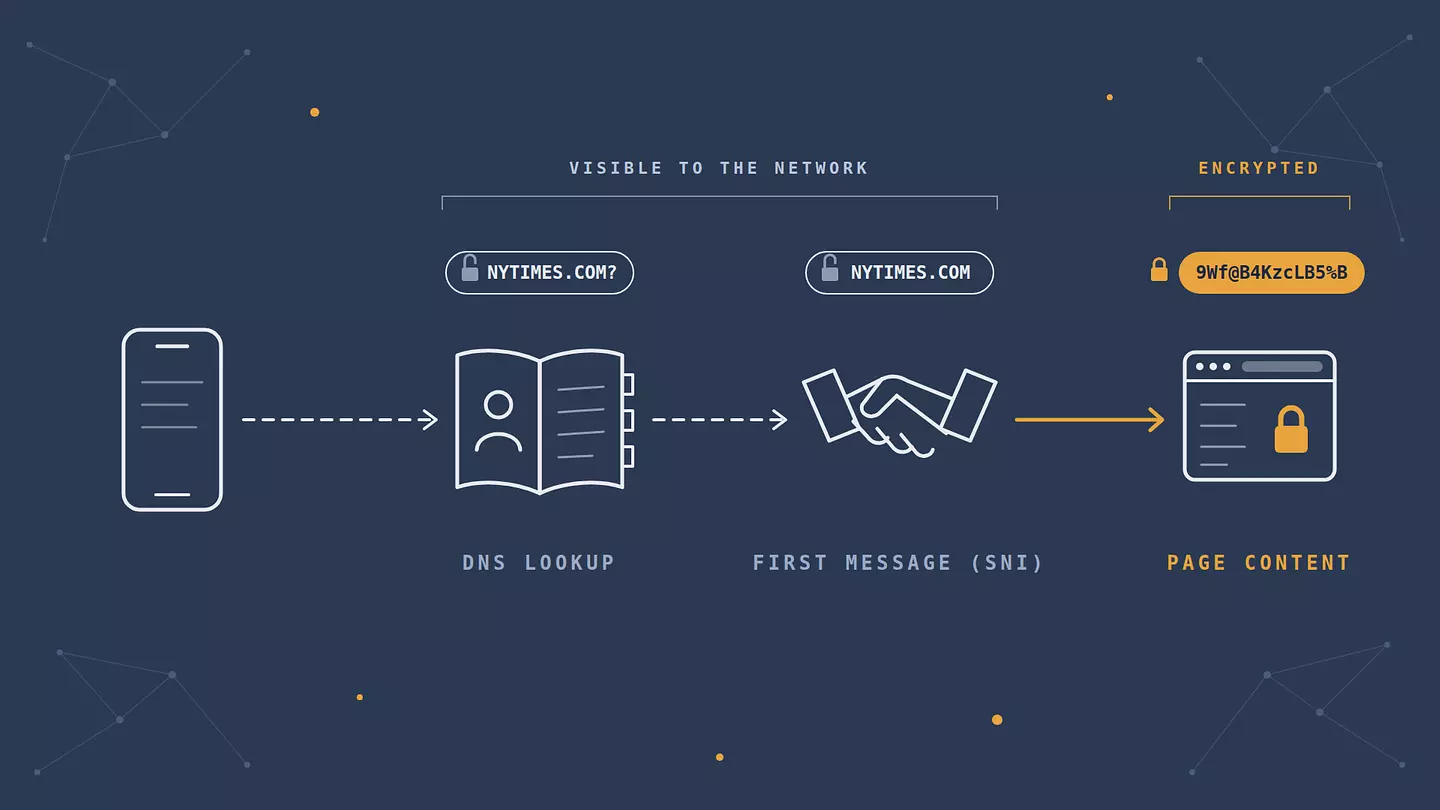
Both leaks are slowly closing. Encrypted DNS, covered in the tips below, hides the lookups. Encrypted Client Hello (ECH) hides the site name in that first message. Chrome and Firefox both support it, and Cloudflare has turned it on for sites on its free plan. The catch is that it needs support from both the browser and the site. Cloudflare accounts for most of it so far, and plenty of sites still send the name in the open. And even with both leaks closed, the owner still sees the IP address you connect to. For a site on shared hosting, that IP reveals very little. For a big service that runs its own servers, it can give the game away.
Where the owner actually sees all this
"Can see" and "is looking" are different things. What someone can pull up depends on what they've set up.
The router's admin page
If the owner logs into a typical home router, usually at an address like 192.168.0.1 or 192.168.1.1, they'll find a list of connected devices with names, IP addresses, and MAC addresses, often with data usage per device. What most basic routers don't show out of the box is a list of every site each device visited. Getting that usually means turning on extra logging, installing custom firmware like OpenWrt, or adding a separate tool. So on an ordinary home network, the owner could see your sites but probably doesn't, unless they went out of their way to set it up.
Parental controls and DNS filters
This is how most site-level history gets collected. Some mesh Wi-Fi systems and router apps include parental controls that record activity per device. A Pi-hole (a small ad-blocking DNS server people run at home) or a service like NextDNS logs every domain lookup, per device, with timestamps, and can keep those logs for months. If a parent or a tech-savvy roommate has one of these running, assume they have a readable list of the domains your phone looked up.
Worth separating: apps like Google Family Link or Apple's Screen Time work on the phone itself, not the Wi-Fi. If a parent manages your phone that way, they can see which apps you use and, depending on the settings, which websites you visit, on any network, mobile data included.
Work and school networks
Offices, schools, and universities often go further. They can log and filter domains like any router, and many block categories of sites outright. The bigger step is a monitoring certificate. If an organization installs its own root certificate on a device (common on company-issued phones) and runs HTTPS inspection on its network, it can decrypt that traffic, inspect it, and re-encrypt it, so it sees full pages and content, not just domains. That's the main case where HTTPS stops protecting you from the network owner.
This only works if the certificate is actually on your phone. To check:
iPhone: Settings > General > VPN & Device Management shows any installed profiles. Settings > General > About > Certificate Trust Settings shows manually trusted root certificates.
Android: look under Settings > Security (or Security & privacy) > Encryption & credentials > Trusted credentials, then the User tab. The exact path varies by manufacturer.
If you find a profile or certificate you don't recognize on a personal phone, look up who installed it and remove it if it isn't yours or your security app's. If it's a work phone, don't remove anything without asking IT, and assume your employer can see much of what you do on it, whatever network you're on.
Incognito and deleting your history don't help here
Incognito or private mode stops your browser from saving history, cookies, and form data on your phone. That's all it does. A router, a DNS filter, or a school network records traffic on its own side, not yours, so it sees exactly the same thing whether you're in incognito or not.
Deleting your browser history works the same way. It clears the copy on your phone and leaves every log on the router or DNS service untouched. We cover the other places your activity ends up, including Google's own records, in our breakdown of who can see what you search.
How to hide your browsing from the Wi-Fi owner on your phone
The options below differ in how much they hide and what they cost you, so pick based on what you're trying to keep private.
Use a VPN app
A VPN encrypts all your phone's traffic and sends it through an encrypted tunnel to a server run by the VPN provider. The Wi-Fi owner sees one encrypted connection to that server: its IP address, when you were connected, and how much data went through. They don't see the domains or the DNS lookups, so they can't read off which sites or apps you're using. Of the options here, it's the most complete, and it also protects you on public networks at cafés and airports. Browsec's Android VPN app covers the whole phone, and so does the version for iPhone. Both work on the free plan.
A few things to know going in:
A VPN browser extension only covers that browser. Your apps and any other browser go around it. To cover the whole phone, use a VPN app.
The owner can see that you're using a VPN, and some networks (schools and workplaces especially) block VPN connections.
The VPN provider is now in the position the Wi-Fi owner used to be in. Pick one you trust.
A misconfigured VPN can still leak your DNS lookups to the network. It takes two minutes to check that your VPN works.
Turn on encrypted DNS
Encrypted DNS hides the lookups, the first of the two leaks, without routing your traffic anywhere else.
Android: Settings > Network & internet > Private DNS (on Samsung phones, Connections > More connection settings > Private DNS). The default, Automatic, only encrypts DNS when the network supports it, and most home routers don't. To make it count, choose "Private DNS provider hostname" and enter a provider such as dns.google or one.one.one.one. See Google's Android network settings guide for details.
iPhone: Settings has no separate encrypted DNS toggle. If you pay for iCloud+, Private Relay (below) encrypts DNS for the whole phone. Without it, an app from a DNS provider, such as Cloudflare's 1.1.1.1 app, can do the same.
This hides the list of names you look up. The site name can still show in the SNI of each connection, though, and the owner still sees the IP addresses you connect to, so a determined owner can piece together a good part of the picture anyway.
iCloud Private Relay on iPhone
If you pay for iCloud+, iCloud Private Relay routes your Safari browsing through two separate relays, so the network owner can't see which sites you visit in Safari. According to Apple's developer guidance, it also encrypts the DNS lookups of your other apps, which takes away the owner's neat list of names. Those apps still connect directly, though, so their server names can show up in the SNI and their IP addresses stay visible. Some networks block it, and your iPhone will tell you when Private Relay is off for a particular network.
Switch to mobile data
Turn Wi-Fi off and use mobile data, and the Wi-Fi owner has nothing to see, because your traffic no longer touches their network. Your mobile carrier now sees roughly what the Wi-Fi owner would have seen: domains, times, data use. And unlike the café down the street, the carrier usually knows exactly who you are. For a one-off sensitive task on someone else's network, that's a good trade. As a general privacy fix, it just swaps one watcher for another.
If the network you're worried about is your own, the other side of this problem is keeping outsiders off it. That's covered in our guide to securing your home Wi-Fi.
What changes on a laptop
As far as the Wi-Fi owner is concerned, almost nothing. DNS lookups, the site name in that first message, HTTPS, router logs, and work certificates behave exactly the same on a laptop as on a phone. A few details shift around, though.
The domain list looks more like your actual browsing. A laptop does most of its work in the browser, so there's less app chatter mixed in and the sites you open stand out more clearly. Desktop apps still leave their own trail: Steam, Spotify, Slack, Zoom, and sync tools like OneDrive or Dropbox all connect to servers with recognizable names.
Your laptop can also be easier to identify. Its name on the network is often your own (a Mac names itself after its owner out of the box, something like "Sam's MacBook Air"), and Windows sends its real hardware MAC address unless you turn on Random hardware addresses under Settings > Network & internet > Wi-Fi.
Encrypted DNS takes a little more setup than on a phone:
Windows 11: go to Settings > Network & internet > Wi-Fi > Hardware properties and click Edit next to DNS server assignment. Switch to Manual, enter a provider such as 1.1.1.1, and set DNS over HTTPS to On.
Mac: System Settings has no switch for it. A configuration profile or an app from a DNS provider, such as Cloudflare's 1.1.1.1 app, turns it on for the whole Mac.
In the browser: Chrome, Edge, and Firefox can encrypt DNS on their own (in Chrome, it's Use secure DNS under Settings > Privacy and security > Security). Pick a provider from the list rather than leaving the default, which only encrypts when your current DNS supports it. This protects that browser and nothing else.
The extension-or-app choice for a VPN plays out differently here. A browser extension already covers most of what you do on a laptop, but anything outside that browser, from desktop apps to a second browser, goes around it. Browsec's desktop app for Windows, macOS, and Linux covers the whole computer, and it comes with the Premium plan.
Treat a work laptop with the same caution as a work phone, or more. Company-managed computers often come with a monitoring certificate and security software that watches activity on the device itself, on any network, whether or not you run a VPN of your own.
Browsec şu platformlarla uyumludur:
FAQ
Can the Wi-Fi owner see what apps I use?
Usually, yes. Apps connect to their own servers, and those server names are visible the same way website domains are. If the owner is logging traffic, they can tell you used Instagram or TikTok at a certain time, but not what you looked at or posted inside the app.
Can the Wi-Fi owner see my Instagram or WhatsApp messages?
No. Instagram and WhatsApp traffic is encrypted, and WhatsApp messages are also end-to-end encrypted, so nobody in between, the Wi-Fi owner included, can read them. The owner can see that your phone connected to those services, and when. A work phone with a monitoring certificate installed is the main setup where the network might see more, and even then, end-to-end encrypted chats like WhatsApp stay unreadable to it.
Can the Wi-Fi owner see my history after I disconnect?
If they were logging, yes. The records live on the router or on a DNS service like Pi-hole or NextDNS, not on your phone, so disconnecting or deleting your history doesn't touch them. Basic routers keep small logs that often reset on reboot. A DNS filter can keep them for months.
Can my parents see what I search on Wi-Fi?
Through the Wi-Fi alone, and only if they're logging traffic, they can see that you used Google or Bing, but not what you typed, since searches are encrypted. They can see the sites you clicked into from the results, though, at the domain level. If they manage your phone with Family Link or Screen Time, that's a different matter: those tools work on the device and can show more.
Does a private Wi-Fi address hide what I browse?
No. Modern iPhones and Android phones use a randomized MAC address for each network by default, which stops networks from tracking your phone across different locations. On a single network, your phone still has a consistent identity (on iPhone, the private address stays fixed by default on networks with WPA2 security or better, and only rotates every two weeks on weaker or open ones), and your traffic is just as visible as before. See Apple's guide to private Wi-Fi addresses.
Bu makaleye atıf yapın
Browsec. "What the Wi-Fi Owner Can See When You Browse." Browsec Blog, 8 Ekim 2026 Perşembe, https://browsec.com/tr/blog/can-wifi-owner-see-what-sites-i-visit.