How to Unblock a Website
목차
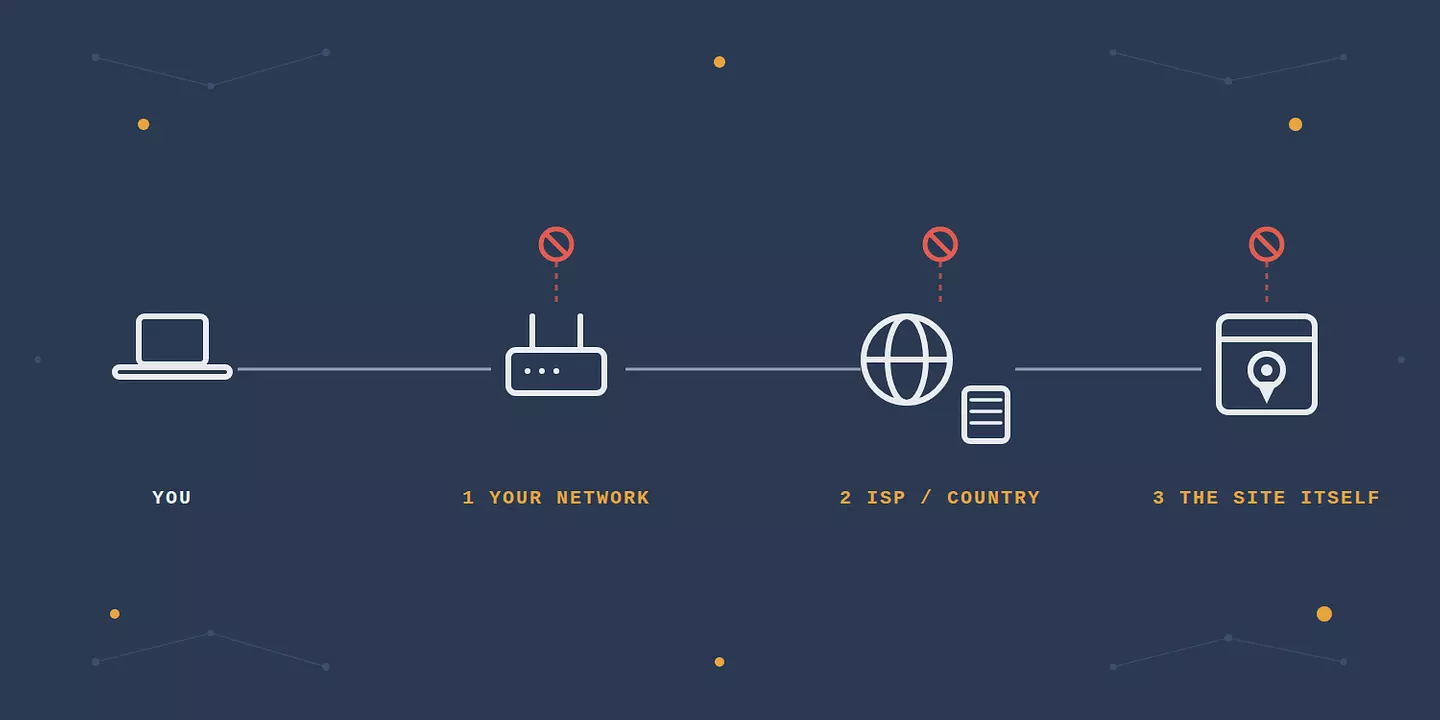
A blocked website usually has one of three things in the way: the network you're on, your ISP or your government, or the site itself deciding you're in the wrong country.
The fastest fix for most people is a browser VPN or proxy extension, which you can add in a couple of clicks even on a locked-down school or work machine.
A few lighter tricks work too. Which one you reach for depends on what's causing the block, so that's where to start.
Why the website is blocked in the first place
Before you install anything, work out where the block is happening. There are three places it can sit, each with a different fix, plus one case where the site isn't really blocked at all.
Your network is blocking it
This is the school, office, library, or cafe Wi-Fi case. Whoever runs the network has a filter that blocks whole categories of sites: social media, games, streaming, sometimes anything they haven't specifically allowed. The block only exists while you're on that network. Get off it, or route your traffic through a connection the filter can't inspect, and the site loads normally.
One telltale sign is that the site works fine on your phone's mobile data but not on the Wi-Fi. On public networks, a VPN also does a second job, since it stops other people on that Wi-Fi from seeing what you're doing. We get into that side of it in our piece on public Wi-Fi safety.
Your country or ISP is blocking it
Here the restriction follows you across every network in the country. Internet providers are ordered to block specific domains, so switching from home Wi-Fi to mobile data changes nothing. This covers everything from court-ordered piracy blocks in Europe to broad political censorship elsewhere. If you're somewhere that restricts access to news or social platforms, know that getting around those blocks can carry real legal risk. Read the "what to watch out for" section below before you do anything. Our breakdown of internet censorship worldwide gives a sense of how widespread this has become.
The site is blocking you
Nothing on your side is broken. The site looks at your IP address, decides you're in a country it doesn't serve, and shows you a "not available in your region" message. Streaming catalogs, sports broadcasts, some news sites, and shopping deals all do this. The fix is to appear to be somewhere else.
The site is just down
Quick gut check before you blame a block. If a site won't load, spend 30 seconds ruling out the boring explanation: it's down for everyone, or something on your device is cached or outdated.
Quick checks before you install anything
Some blocks aren't really blocks, and some are so crude that a 10-second trick beats them. Run through this list first.
Type the full https:// in front of the address. Some crude filters only match the plain HTTP form of a URL, so spelling out HTTPS occasionally slips past them.
Switch to mobile data. On your phone, turn off Wi-Fi and load the site over cellular. If it works, the block is on the network you were using, and a hotspot to your laptop solves it for free.
Open it in a private window, or a different browser. This rules out a cached redirect or an extension getting in the way.
Check whether it's down for everyone. Downdetector, or just searching "[site name] down", tells you if the problem is on their end.
Look at the archived copy. Paste the URL into the Wayback Machine and you can often read the page even when the live version won't load. No good for anything you need to log into, but for an article it's enough.
If none of that works, you need an actual tool.
The methods that actually unblock websites
A browser VPN or proxy extension: the easiest option
For the school and work case, this is usually the answer. A browser extension like Browsec adds a VPN or proxy straight into Chrome, Firefox, Edge, or Opera. You don't need admin rights to install one, which matters on a managed Chromebook or a work laptop where the desktop installer is locked down. You click the icon, pick a country, and the pages you open in that browser get routed through a server the network filter has no say over.
The trade-off: an extension only covers traffic in that browser, not other apps on the device. For unblocking websites, that's exactly the scope you want. It's also the quickest to switch on and off when you only need it for one site.
The mode you run matters. In VPN mode the traffic is encrypted as well as rerouted, so whoever runs the network can see that you're connected to something but not which pages you're reading. In proxy mode it's rerouted without encryption, which is lighter and fine when all you need is access. If you're not sure which you want, we broke down how proxies and VPNs differ in a separate post.
A full VPN app
A VPN app installed on your device encrypts everything the device sends, not just one browser. That's the one to use if you want to unblock a service in a separate app, like a streaming app or a game, or you want encrypted traffic across the whole system. It needs installation rights, so it's out on a lot of managed machines, and it's slightly more to manage than an extension. For the fuller picture, here's what a VPN is good for and where it falls short.
A standalone web proxy
A web proxy is a site you visit, paste a URL into, and it fetches the page for you. Nothing to install, which makes it handy on a public library PC. The caveats matter, though: most free web proxies don't encrypt anything, plenty log what you visit, they're often buried in ads, and they break on anything complicated like video or a site that needs a login. Fine for reading a blocked article once. Not something to run your accounts through.
Tor Browser
Tor routes your traffic through several volunteer-run relays, which makes it very hard to link the browsing back to you. It's the tool when anonymity genuinely matters, not just access. Downsides: it's slow, some sites block Tor traffic outright, and on a filtered network you may not even be able to download it. Get it only from the official Tor Project site, since fake builds exist.
Changing your DNS
Some network and ISP blocks are done purely at the DNS level: your provider's DNS server just refuses to translate the domain into an IP address. Switching your device's DNS to a public resolver like Cloudflare's 1.1.1.1 or Google's 8.8.8.8 steps around that specific kind of block, and it's a two-minute change in your network settings. One caveat: DNS doesn't hide anything or encrypt your traffic, and it won't touch blocks that work at the IP level or deeper, which covers most of the tougher ones.
Smart DNS
Smart DNS is built for one job: watching streaming catalogs from another region without the speed drop a VPN can cause. It reroutes only the small part of your connection that reveals your location and leaves the video stream on your normal fast connection. The catch is that it gives you no privacy or encryption at all, so it's a streaming convenience, not a security tool.
Method | Setup effort | Speed | Encrypts your traffic | Best for |
|---|---|---|---|---|
Browser VPN/proxy extension | Very low, no admin rights | Fast | Yes, in VPN mode | School and work blocks, quick per-site use |
Full VPN app | Low, needs install rights | Fast | Yes | Whole device, other apps, streaming, privacy |
Web proxy | None | Slow | Usually no | One-off access on a public PC |
Tor Browser | Low | Slow | Yes | Strong anonymity when the stakes are high |
DNS change | Low | Fast | No | Crude DNS-only blocks |
Smart DNS | Medium | Fast | No | Streaming from another region |
What to look for in a VPN or proxy
Most of the difference between these tools shows up after the first click, not during it. Five things are worth checking before you settle on one.
Does it encrypt, or only reroute? A proxy changes the IP address a site sees. A VPN connection encrypts the traffic as well, so the network you're sitting on can't read it. Some extensions offer both and default to the lighter mode, so check which one you're actually running.
Where the servers are. Speed depends mostly on distance, so one server near you is worth more than a list of a hundred countries. If you're after a regional catalog, the question is different: does it have a working server in the specific country you need.
What gets logged. A published no-logs policy is the floor, not the ceiling. The useful ones say what is kept and for how long rather than promising that your privacy matters.
Whether it installs without admin rights. On a school or work machine this decides everything else. Browser extensions install under your own account; desktop apps usually can't.
What the free tier actually gives you. Free plans are normal here, but they differ a lot: some cap speed, some limit you to a handful of locations, some are trials wearing a free plan's clothes. Check before you depend on one.
Tricks that sometimes work
They're worth trying because they cost nothing, but treat them as stopgaps, not solutions.
URL shortener. Running the blocked address through a shortener like Bitly can slip past a filter that only matches on the exact domain. Stops working the moment the filter resolves shortened links.
Google Translate. Load the site through Translate and it behaves like a rough proxy. This one has largely stopped working where you'd want it most: translated pages now open on the translate.goog domain, and most school and workplace filters block that outright. Where a filter hasn't caught up, the layout still breaks and anything interactive fails, but a blocked article is readable.
The site's IP address directly. If the filter blocks the domain name but not the server, typing the raw IP can get you in. Useless when the server hosts many sites on one address, which is common.
Web archive. Covered above. Great for articles, no good for anything live.
If you find yourself leaning on these, it's a sign you want a proper extension or VPN instead.
What to watch out for
Free "unblocker" sites and free VPNs are worth a closer look before you trust one. Servers and bandwidth cost someone money, and when a service doesn't say anywhere how it's funded, you're left guessing: ads, throttling, or data about where you go. A few browser "unblocker" extensions have been caught shipping malware in the past. So read the privacy policy, and check what is publicly known about who runs the thing.
Never sign in to anything over a plain web proxy. No encryption means the proxy operator, and anyone on the network path, can read what you type, passwords included.
Streaming bans do happen. Most streaming services' terms let them suspend an account for using tools to reach another region's catalog. In practice they usually just block the stream, but the risk isn't zero.
On the legal side: in most countries, using a VPN or proxy to reach a blocked site is legal, and the block is a network policy rather than a law. That isn't universal. A handful of countries restrict or ban VPNs, and in places with heavy censorship, getting around a government block can carry serious penalties. If that's your situation, look into it properly before you act, and don't rely on a free tool. What you do once you've reached a site still falls under local law and the site's own rules either way.
So which one should you pick?
Blocked at school or on work Wi-Fi and can't install software: a browser VPN or proxy extension, since it installs without admin rights.
You want one site's regional catalog for streaming: Smart DNS if speed matters most, a full VPN app if you also want the privacy.
Privacy is the actual point, not just access: Tor Browser, or a VPN with a no-logs policy.
One-off, on a computer that isn't yours: a web proxy, and don't log into anything.
Everything's blocked and you want it fixed across the whole device: a full VPN app.
For most people hitting a blocked site on a normal day, a browser VPN extension covers it with the least fuss. It installs in a couple of clicks without admin rights, encrypts what you send when you run it in VPN mode, and switches off again the moment you're done with it.
FAQ
How do I unblock a website on Chrome?
If Chrome itself is showing the block, type chrome://policy in the address bar and look for a URLBlocklist entry. That tells you straight away whether a school or work policy is doing it, which is the usual answer on a managed account. If nothing shows up there, open Settings, then Privacy and security, then Site settings, and check the permissions for that site. It's also worth turning off your extensions one at a time to find one that might be interfering. If the block is on the network rather than in Chrome, add a VPN or proxy extension from the Chrome Web Store, pick a server, and reload the page. On a school-managed Chrome account, the extension route is usually the only one that works, since the deeper settings are locked by admin policy.
How do I unblock websites on a school Chromebook?
A managed Chromebook blocks the desktop-app path, so a browser extension is the realistic option. Install a proxy or VPN extension, turn it on, and the sites you open route around the school filter. If the school also blocks the Chrome Web Store, you're mostly left with switching to a personal device on mobile data. Keep in mind that school devices can log activity regardless of any extension.
How do I unblock a website on my iPhone?
If it's a network block, turn off Wi-Fi and use mobile data, or install a VPN app from the App Store and connect. If a specific site is blocked by Screen Time, go to Settings, then Screen Time, then Content and Privacy Restrictions, then "App Store, Media, Web, & Games", then Web Content, and either allow the site or switch off the limit. That one needs the Screen Time passcode.
Is it legal to unblock websites?
In most countries, yes. Using a VPN or proxy is legal, and a school or workplace block is usually an internal policy rather than a law, so for most people getting around it is a matter between you and that institution. It can still break the terms you agreed to. Some countries do restrict or ban VPN use, and in places with heavy censorship, getting past a government block can carry real penalties. What you do on the site you reach is still subject to local law and the site's terms either way.
Are free website unblockers safe?
It depends on the service, not on whether it's free. At an established provider a free tier is a normal part of the product: capped on speed or on the number of locations, but running under the same rules as the paid plan. What should give you pause is something else, namely a service where nothing says who runs it or what happens to your data, because then there's nothing to check it against. A few browser "unblocker" extensions have been caught carrying malware in the past. For reading one blocked page once the stakes are low; for anything you log into, pick a service with a published privacy policy and a track record you can actually look up.
How do I unblock a website without a VPN?
Try the low-effort options first: switch to mobile data, add https:// to the address, open the cached page in the Wayback Machine, or change your DNS to 1.1.1.1. A standalone web proxy or Tor Browser also work without a VPN app. A web proxy doesn't encrypt what you send, so keep it to quick reads and never log in over one. Tor does encrypt your traffic, but it's slow enough to be a poor fit for everyday browsing.
이 글 인용하기
Browsec. "How to Unblock a Website." Browsec Blog, 2026년 09월 01일, https://browsec.com/ko/blog/how-to-unblock-websites.